
Two-factor authentication for small business starts with three kinds of account: email, banking and anything with admin rights. Turn on an authenticator app or security key for those this week, put the team on a password manager, and stop forcing password changes. That order closes the most common ways accounts get taken over.
A password is something a stranger can learn, guess or buy. A second factor means knowing it is not enough. This guide covers what to switch on first, which type of second factor to choose, how to handle shared logins and leavers, and what current NIST rules say about passwords. It is written for owners who do not want a three-month project.
What to turn on first
Start where a break-in costs the most, not where setup is easiest. Email comes first, because whoever controls your inbox can reset the password of almost everything else. Then money, then admin.
- Email: Microsoft 365, Google Workspace or your hosting mailboxes. Every account, starting with the owner and finance.
- Banking and payments: online banking, card processors, payroll. If the bank offers only SMS codes, turn them on anyway. SMS beats nothing.
- Admin panels: domain registrar, DNS, website admin, hosting, firewall, backup console, and ERP or CRM administrator accounts.
- Remote access: VPN and remote desktop gateways.
- Social media and ad accounts, because brand and ad spend sit behind them.
- Everything else that offers it, over the following month.
Write the account list down first. You will find some nobody remembers: the registrar login a former web agency created, the Google account that owns your business listing. Those hurt most when lost.
In Microsoft 365 an admin can require MFA for everyone, through security defaults or Conditional Access. Google Workspace calls it 2-Step Verification and lets admins enforce it organization-wide. Enforce it, rather than asking nicely.
Authenticator apps, SMS, passkeys and security keys
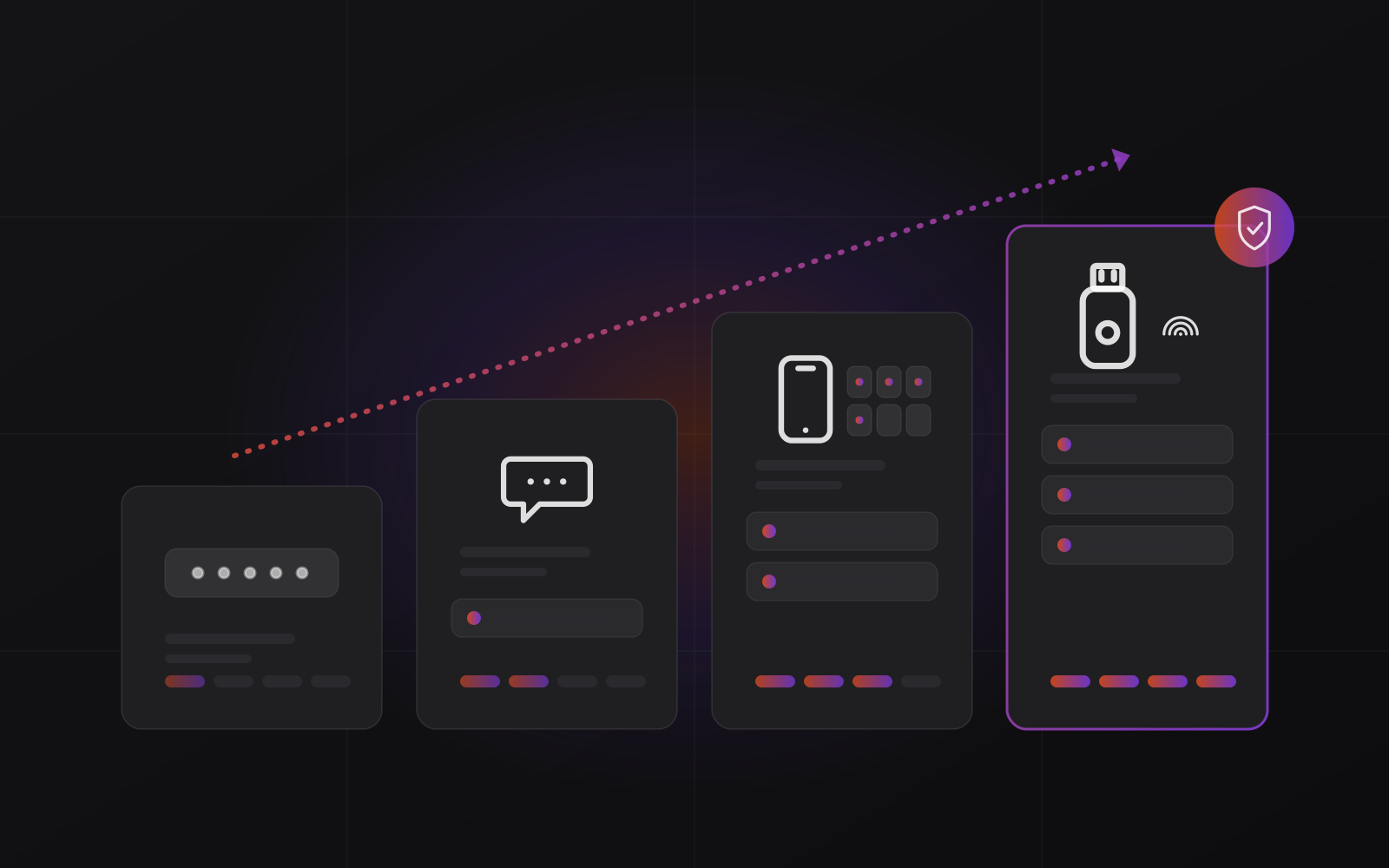
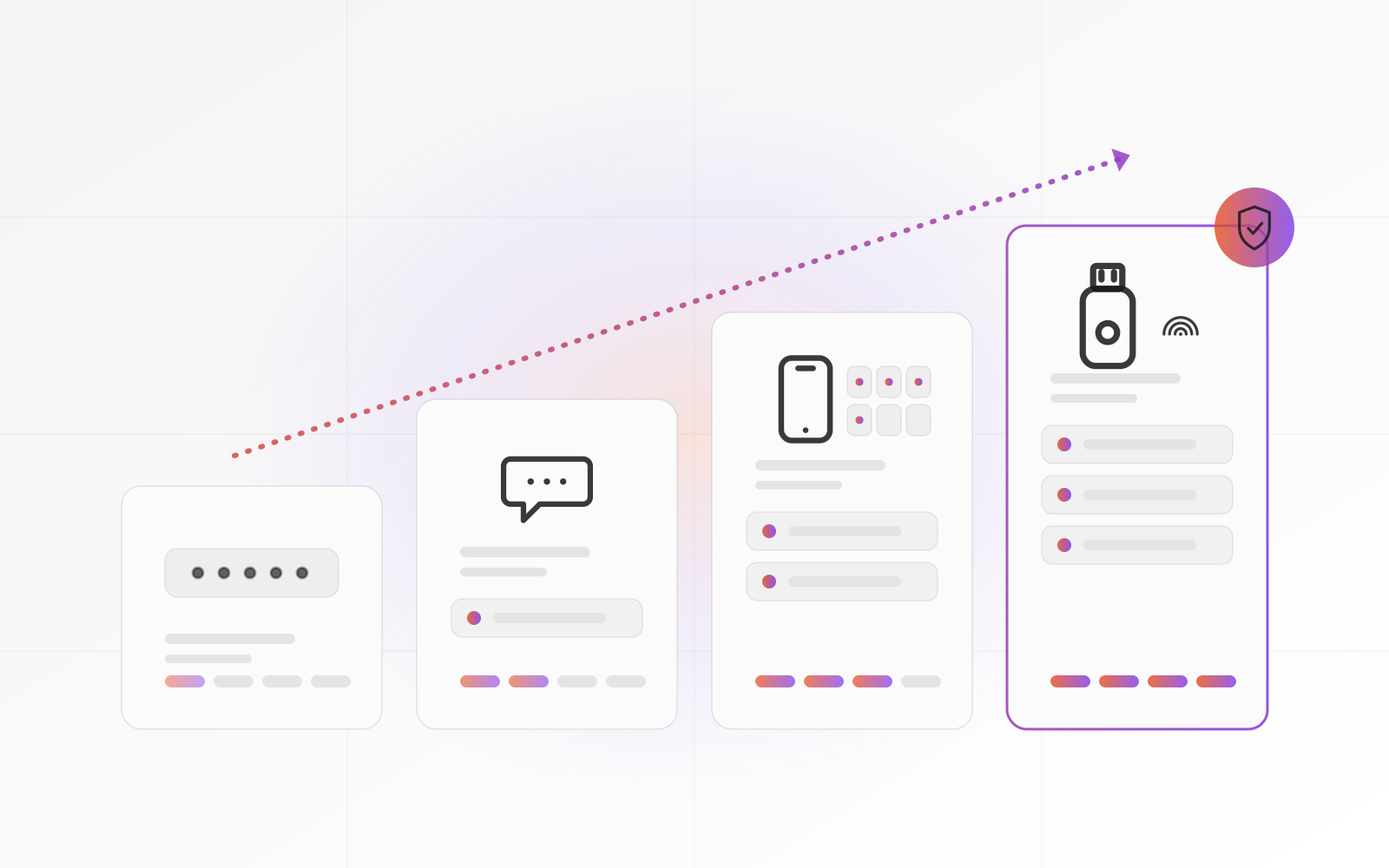
Not all second factors are equal. CISA's fact sheet on phishing-resistant MFA ranks them. Phishing-resistant methods, built on FIDO and WebAuthn, come first, then app codes and number-matched push approvals. SMS and voice codes come last, and CISA calls them a last-resort option.
SMS codes: better than nothing
A text can be intercepted through weaknesses in the phone network. It can also be redirected when someone talks your carrier into moving your number to a new SIM, known as a SIM swap. And it does nothing when a victim types the code into a fake site. NIST classes SMS as a restricted method.
Authenticator apps: the sensible default
Apps such as Microsoft Authenticator and Google Authenticator generate a six-digit code that changes every 30 seconds, using an open standard, RFC 6238. No phone network is involved, so SIM swaps do not matter. They can still be fooled by a fake login page that relays the code in real time.
If your app offers push approvals, turn on number matching. Without it, an attacker can bombard someone with prompts until they tap Approve by accident.
Passkeys and security keys: the strongest option
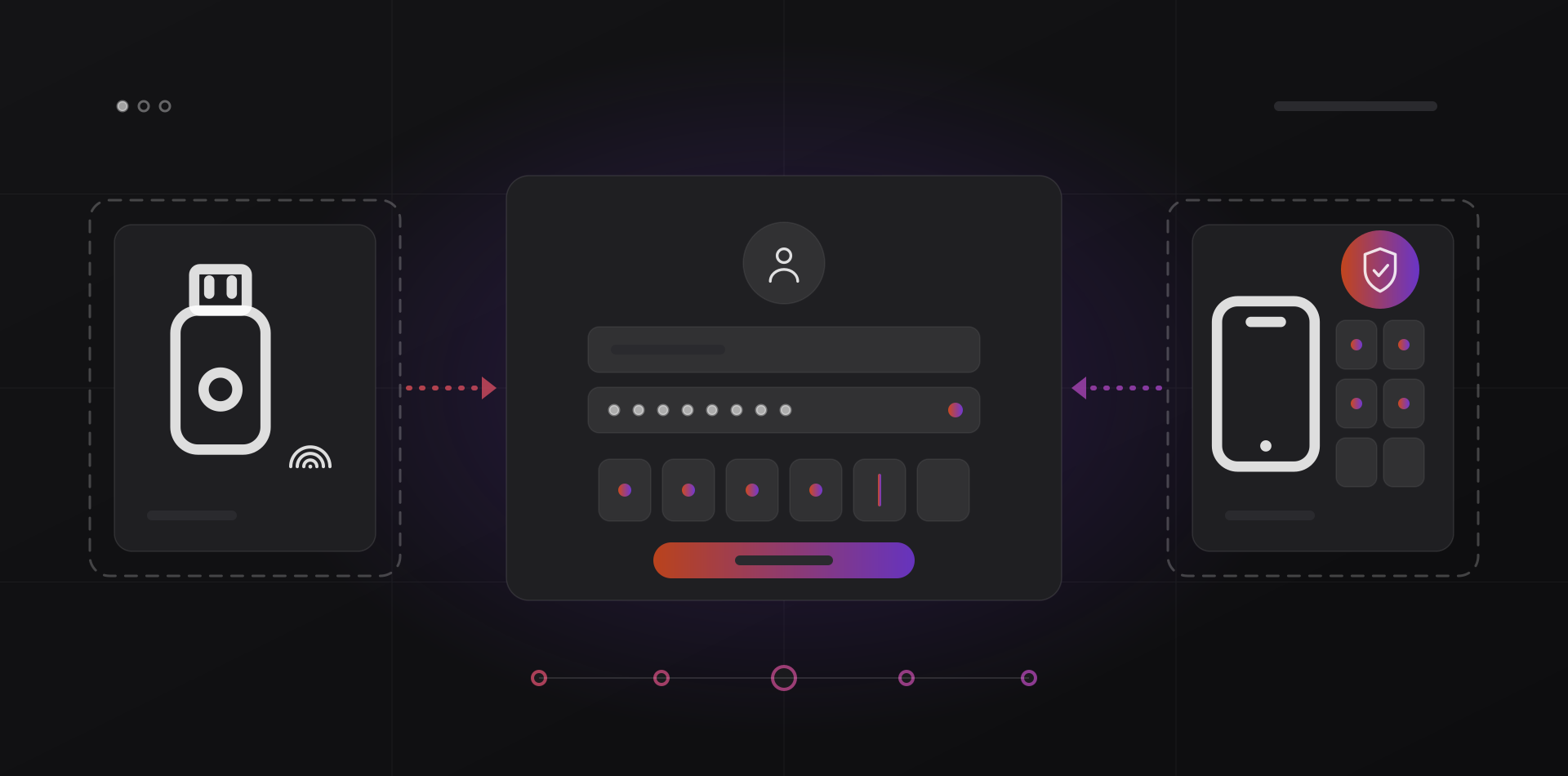
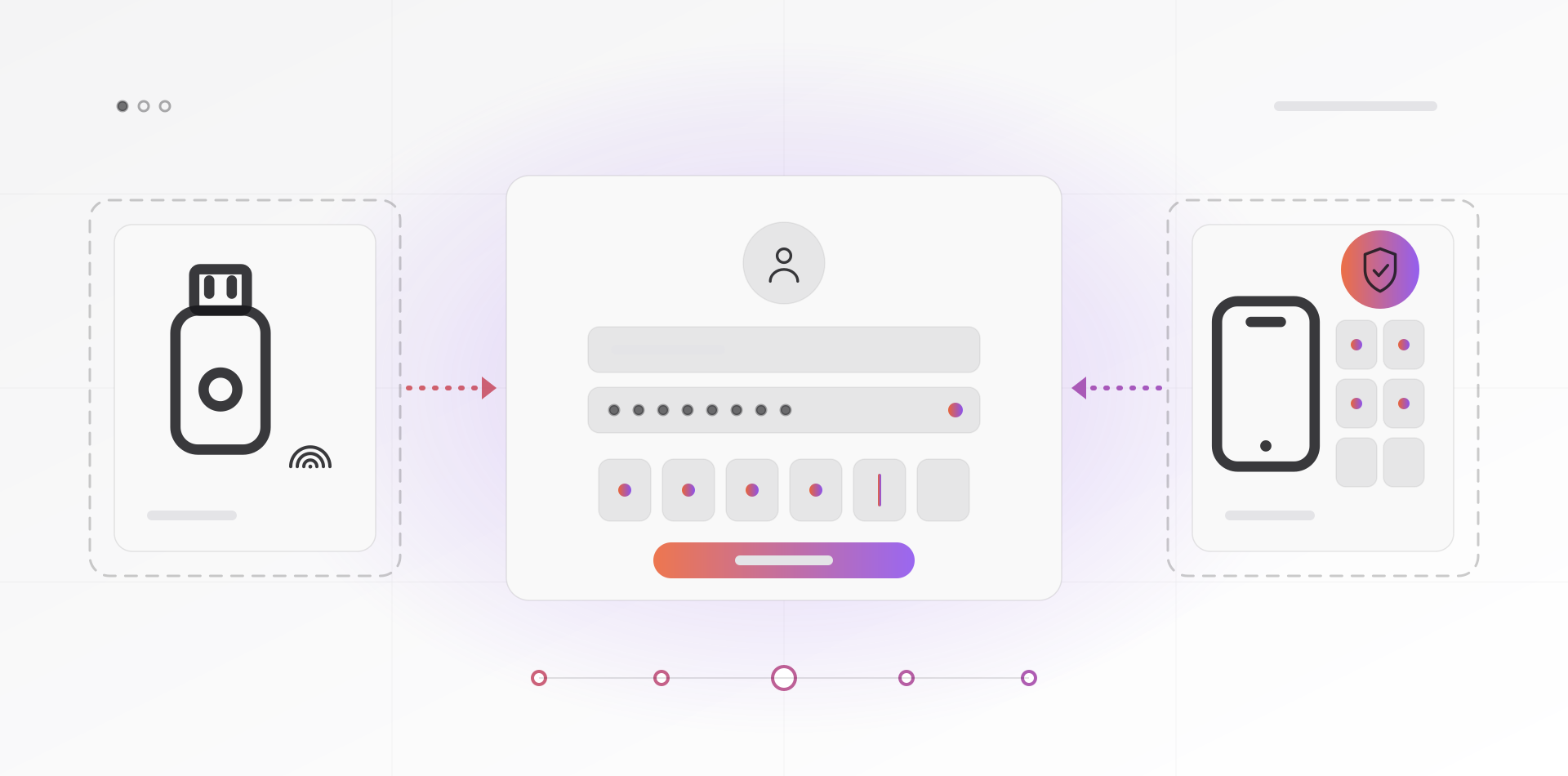
Passkeys and hardware security keys tie the login to the real website's address, so a look-alike site gets nothing. That is why CISA calls this the gold standard. A passkey lives in a phone, laptop or password manager, while a security key is a small USB or NFC device. Buy two per person, and keep one in the safe.
The practical rule: security keys or passkeys for the owner, finance and admins, an authenticator app for everyone else, and SMS only where nothing better is offered. Do not let perfect block good. An SMS code today beats a key rollout planned for next quarter.
Whatever you pick, print the recovery codes and lock them away. A lost phone with no backup method is a classic way to get locked out of your own company.
A password manager for the whole team
People reuse passwords because remembering fifty is impossible. A password manager removes the problem. One strong passphrase opens the vault, and everything inside gets a unique random password. NIST's guidance, SP 800-63B, says services should allow password managers, autofill and pasting.
Buy a business plan, not personal ones. An admin can then share vaults, see who has access and recover accounts when someone leaves. Bitwarden, 1Password and Keeper all sell team plans, and Bitwarden can also be self-hosted on your own VPS. Compare shared vaults, admin recovery, activity logs and single sign-on with Microsoft 365 or Google.
Know the trade-off. A password manager is one basket, and a target. LastPass confirmed in late 2022 that attackers had copied customers' vault backups, which is why the master passphrase must be long and the vault itself needs MFA. Keep the second factor for the manager and for email out of the manager, on an app or a key.
Shared accounts, onboarding and leavers
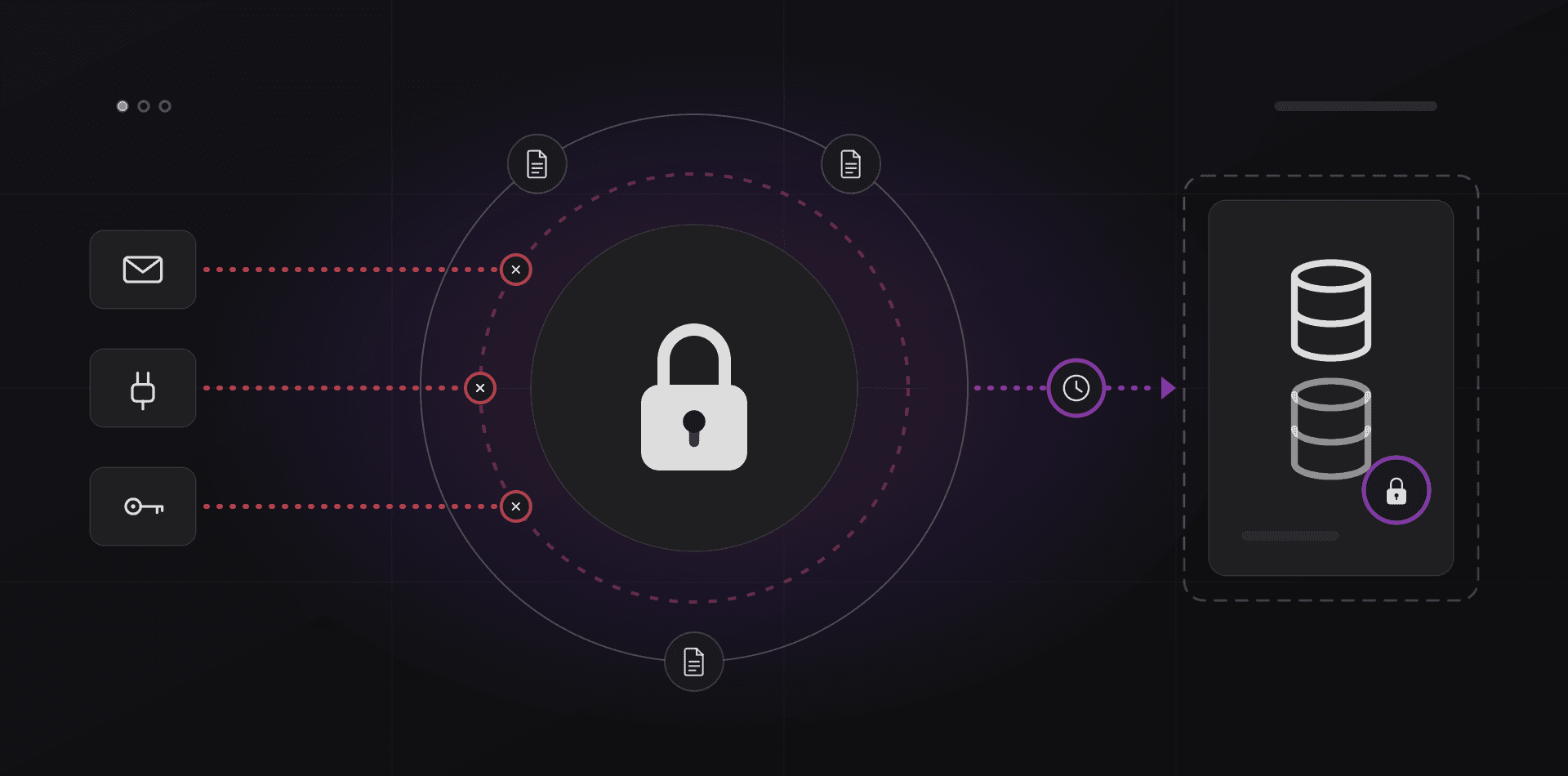
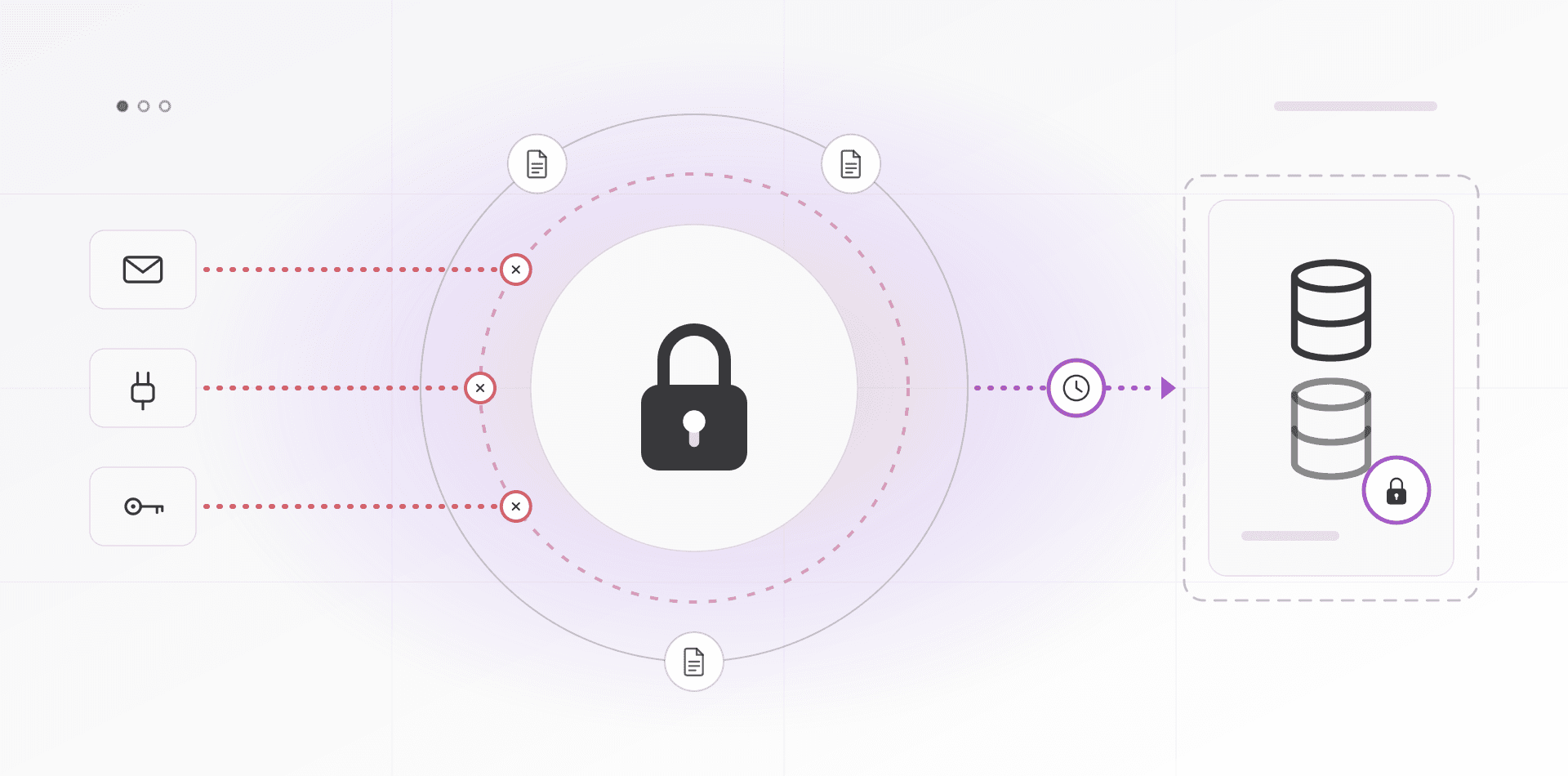
Shared logins are where good policy goes to die. A password for the info@ mailbox, pasted into a chat years ago, cannot be traced, cannot be revoked, and survives every departure.
- Prefer individual accounts with delegated access. Shared mailboxes in Microsoft 365 and groups in Google Workspace need no shared password.
- Where a tool allows only one login, such as some social platforms and supplier portals, keep it in a shared vault by role, and change the password whenever anyone leaves.
- Put that account's second factor on a company-controlled device or the shared vault, not on one person's personal phone.
- Never send passwords by email or chat. Share them through the manager.
Onboarding
On day one, create the account, enroll MFA before granting access, install the password manager, add the person to the right vaults, and hand over a one-page policy. Do it in person or on a call.
Offboarding
On the last day, work through this list in order.
- Disable the account and end active sessions, app passwords and tokens.
- Remove them from the password manager organization, then rotate every shared password they could see.
- Move their mailbox, files and calendar to their manager. Do not delete them.
- Check for mail forwarding rules and third-party app permissions, and remove their number and keys from any recovery options.
- Collect security keys and company devices.
Shared logins are where good policy goes to die.
A password policy that matches current NIST guidance
Many old password policies make people less safe. NIST's current guidance, SP 800-63B Revision 4 (2025), is written for government systems, but it is the best baseline a small company can borrow. These are the rules to adopt.
- Length beats complexity. NIST sets a minimum of 15 characters when a password is the only factor, and 8 when it is one part of MFA. For passwords people type, such as the manager's master passphrase, ask for 15 or more.
- Allow long passphrases, spaces and any characters. Services should accept at least 64.
- Drop composition rules such as "one capital, one symbol". NIST says not to impose them.
- Stop forced periodic changes. Change a password when there is evidence it is compromised.
- Check new passwords against lists of breached and common passwords.
- Allow paste and password managers, and ban security questions such as "first pet".
Why drop rotation? Forced changes teach people to add a number to last month's password. A long, unique, random password that stays put unless it leaks, behind MFA, is stronger than a clever one that changes every 90 days.
Frequently asked questions about two-factor authentication
Is two-factor authentication really necessary for a small business?
Yes. Attackers use passwords leaked in other breaches and fake login pages, and a password alone cannot tell them apart from you. A second factor means a stolen password is not enough. It takes minutes per account, which makes it the best-value security step most small businesses can take.
Is SMS two-factor authentication safe enough?
It is much better than a password alone, but it is the weakest common second factor. Codes can be intercepted or redirected through SIM swapping, and they can be typed into fake sites. Use SMS only where nothing else is offered, and move key people to an app or security key.
What happens when an employee loses their phone?
An admin removes the old device and enrolls a new one, after confirming the person's identity in person or on a call. That is why you keep recovery codes, register a backup method, and give at least two people admin rights.
Should we make employees change passwords every 90 days?
No. NIST's current guidance says not to require periodic changes, and to force one only when a password may be compromised. Forced rotation produces predictable passwords, like last month's with a number added. Use a password manager, long unique passwords and MFA instead.
Which password manager is best for a small business?
The one your team will actually use. Compare shared vaults, admin recovery, activity logs, single sign-on, and whether you want hosted or self-hosted. Bitwarden, 1Password and Keeper are established choices. Run a two-week trial with three people before rolling it out.
Where to go next
MFA is the first layer in our ransomware protection guide. For business email with proper sign-in controls, see domain and professional email setup. If you want a hand rolling this out to your team, talk to us.
Related articles