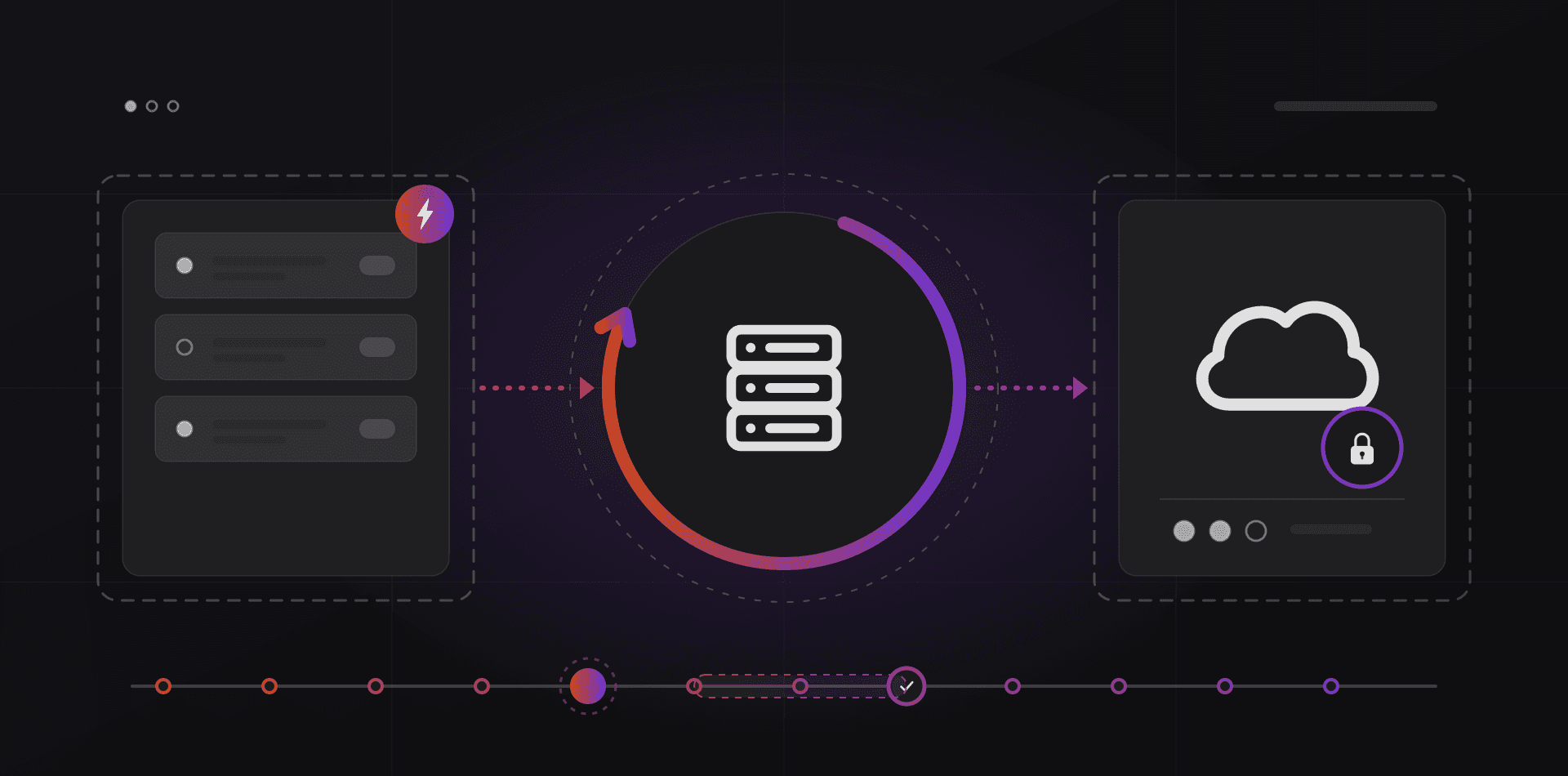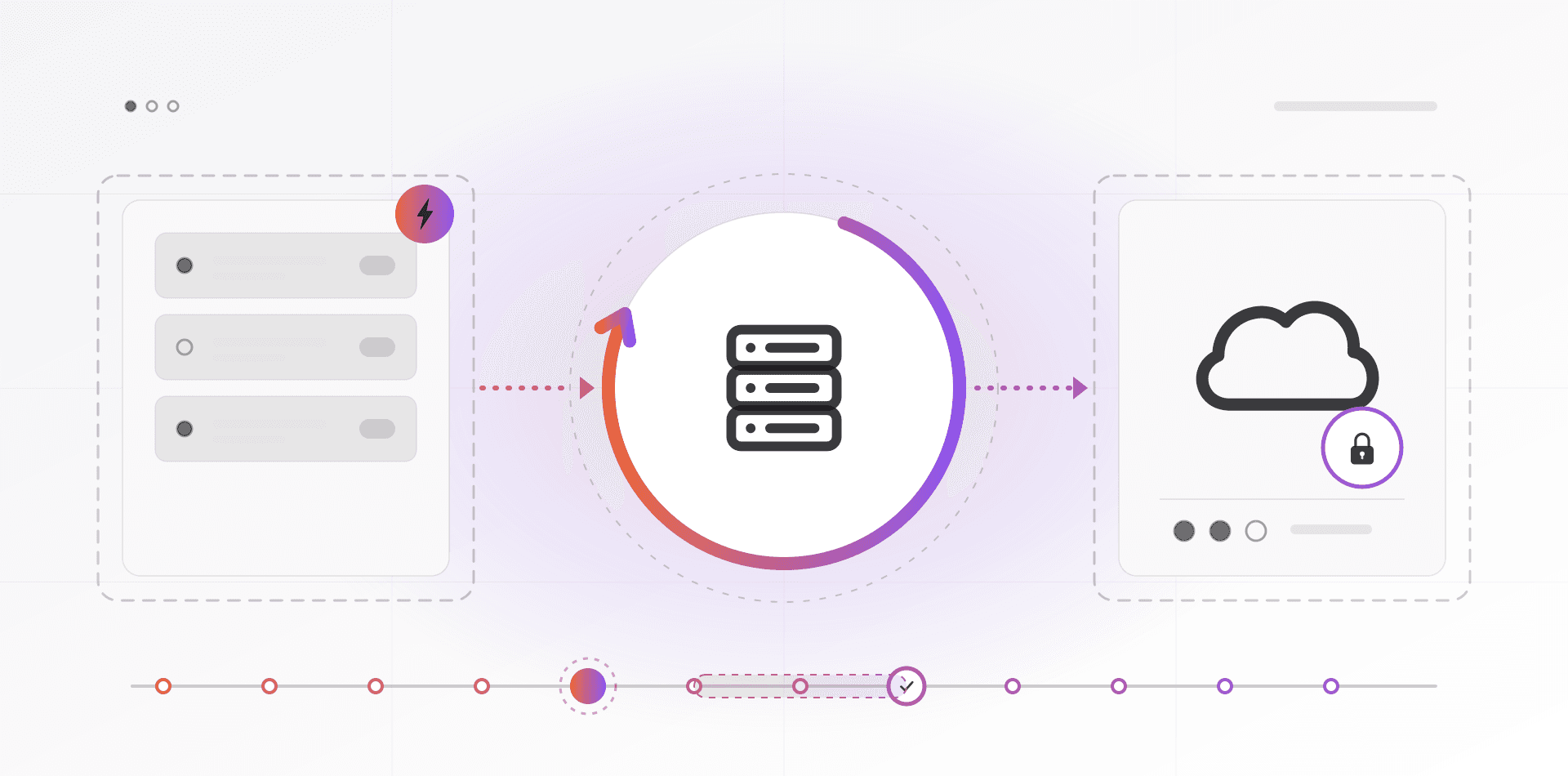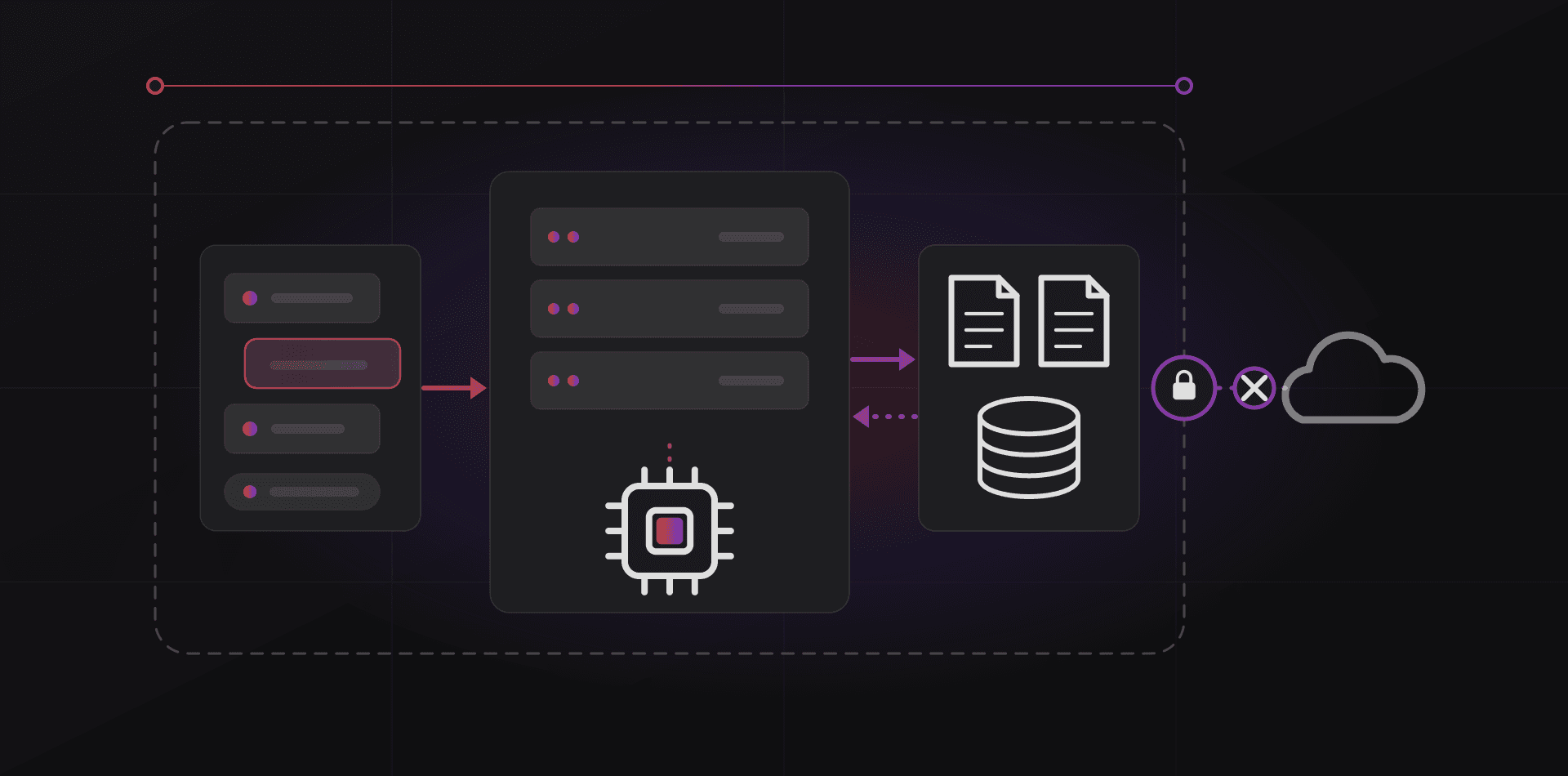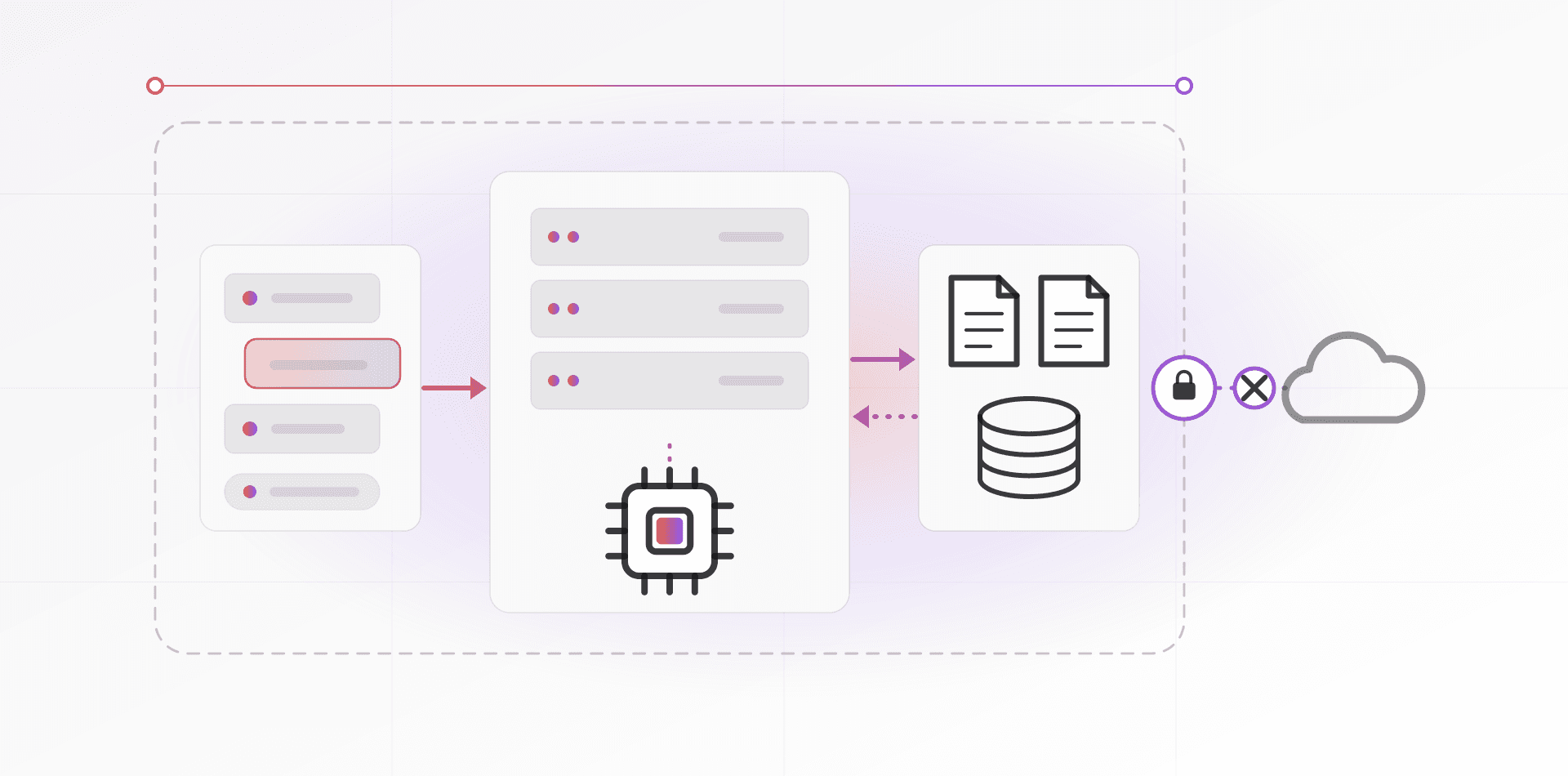

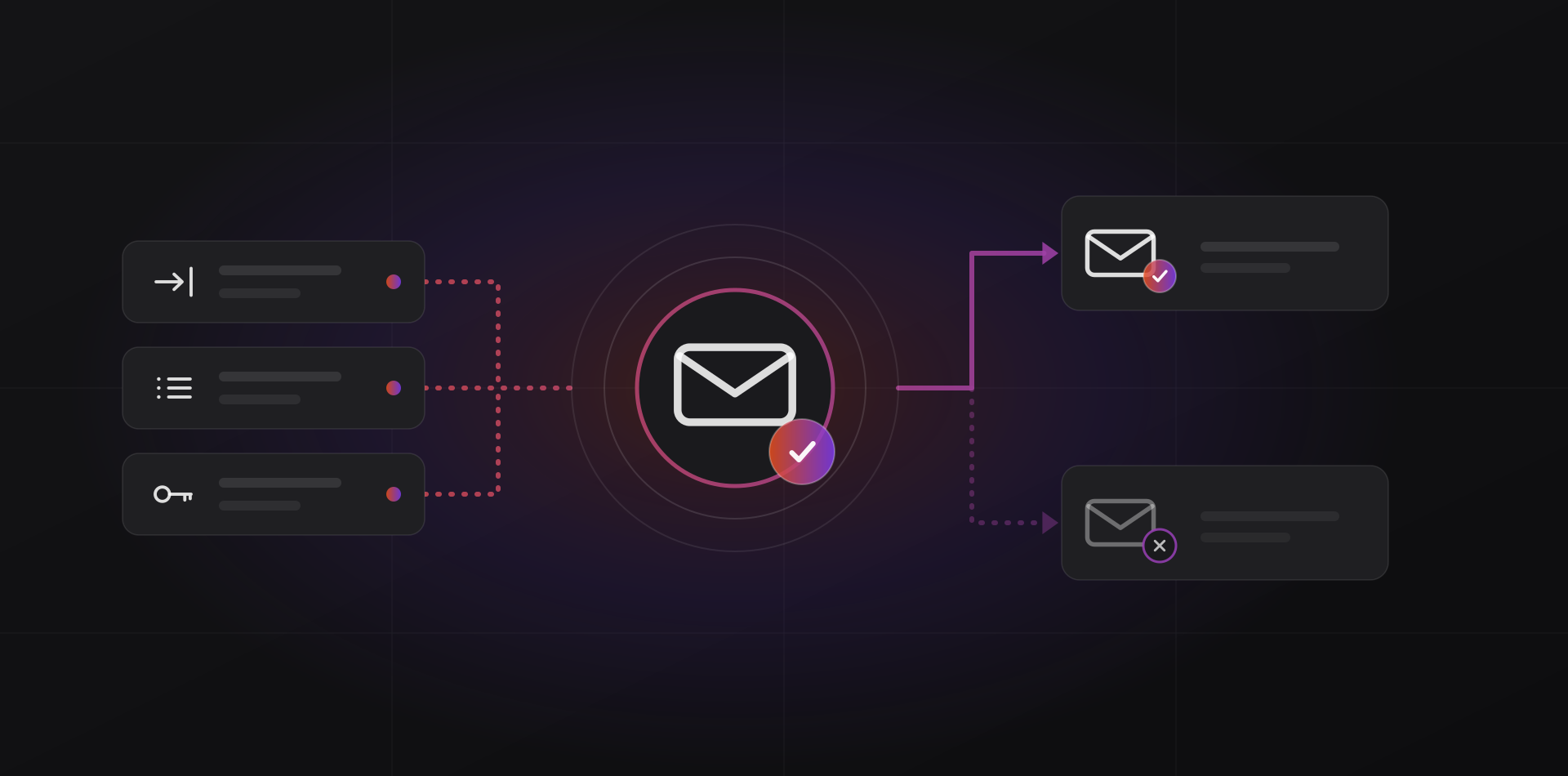
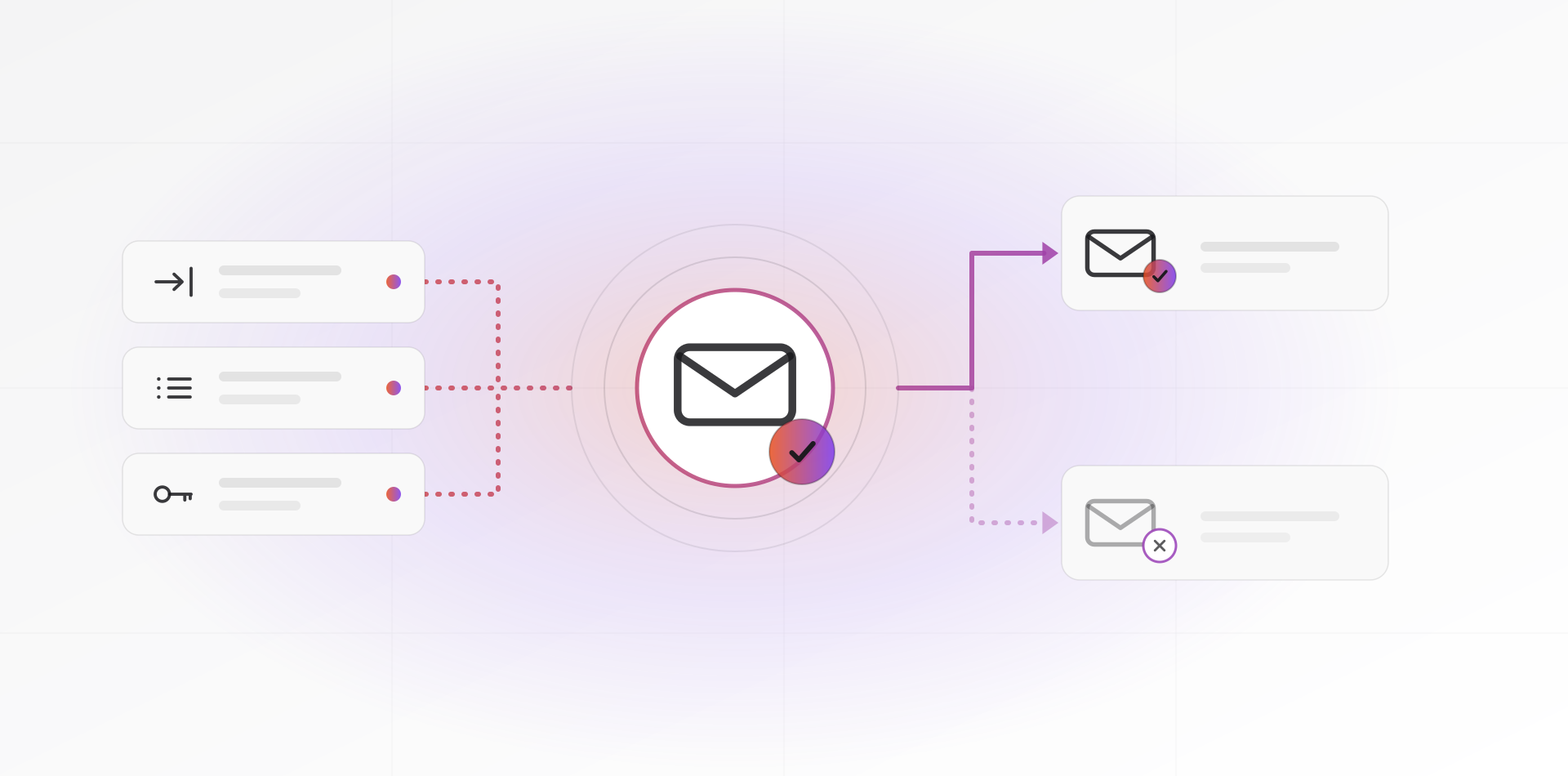
SPF, DKIM and DMARC are three DNS records that prove your business email really comes from you. SPF lists who may send for your domain, DKIM signs each message, and DMARC says what receivers should do when a check fails. Together they decide whether your invoices reach the inbox.
This guide is for owners who still use a free Gmail or Hotmail address for the company, or who run mail on a domain whose DNS nobody has touched since the website launched. You will see which provider to choose, which records to publish, how to reach DMARC enforcement without blocking your own invoices, and how to move mailboxes safely.
Why a free Gmail address is not business email
A free address like yourcompany@gmail.com costs nothing and looks less established to customers. The bigger problem is control. You cannot see who has access, enforce two-step sign-in for staff, or take the mailbox back when someone leaves. Everything tied to that one login walks out with the person.
A domain you own changes that. The address belongs to the company, you decide who gets a mailbox, and the address stays the same if you change provider later. You can also publish the DNS records that prove your mail is genuine. With a free Gmail address, those records belong to Google, not to you.
Register the domain in the company's name, with an account the company controls. The classic mess is a domain registered years ago by a web designer who has since moved on.
Choose a provider: Google Workspace, Microsoft 365 or your own server
Google Workspace
Gmail in the browser, plus Drive, Docs, Calendar and Meet. A good fit when staff already live in Google tools or work mostly from phones and browsers. The admin console is simple.
Microsoft 365
Exchange Online mail with Outlook, plus Word, Excel, Teams and SharePoint. A good fit when staff use the Office desktop apps, or when you also run Windows Server and Active Directory.
Self-hosted
Software such as Postfix and Dovecot, or an all-in-one like Mailcow, on your own server. You control the data, and the cost does not grow per mailbox. In return you own deliverability: IP reputation, reverse DNS, blocklists, spam filtering, patches, backups and uptime. Many hosting networks also block outbound port 25 by default.
For most small businesses the answer is Google Workspace or Microsoft 365, chosen by the tools your team already uses. Self-hosting makes sense when you have a data-residency requirement and someone who will run it every week. Prices change, so check each vendor's page. Whichever you pick, turn on MFA for every mailbox on day one; our MFA and password guide shows how.
The four DNS records, explained simply
DNS is the public phone book for your domain. Four entries in it control how email behaves. Your provider shows the exact values. Your job is to publish them where your domain's DNS is managed, usually the registrar or Cloudflare.
MX: where incoming mail goes
MX records name the servers that receive mail for your domain. Get them wrong and incoming mail goes missing.
SPF: who may send
SPF (RFC 7208) is a TXT record listing the servers allowed to send for your domain. For Google Workspace it looks like v=spf1 include:_spf.google.com ~all, and for Microsoft 365 like v=spf1 include:spf.protection.outlook.com -all. A domain gets one SPF record only. Add every other sender, such as the newsletter tool, to that one record, and stay under the standard's limit of ten DNS lookups.
DKIM: a signature on every message
DKIM (RFC 6376) signs each outgoing message with a private key held by your provider. You publish the matching public key in DNS. Receivers verify the signature, which shows the message was not altered and that your domain approved it. Switch it on in the admin console and choose a 2048-bit key where offered. Google gives you a TXT record, and Microsoft 365 uses two CNAME records.
DMARC: what to do on failure
DMARC (RFC 7489) ties SPF and DKIM to the address people see in the From line. To pass, SPF or DKIM must succeed for a domain that matches that address, which is called alignment. The record tells receivers what to do with failures: nothing (none), spam folder (quarantine) or refuse (reject). It also asks them to send you reports.
It lives at _dmarc.yourdomain.com, and a safe first value is v=DMARC1; p=none; rua=mailto:dmarc@yourdomain.com. The IETF has since published RFC 9989, which replaces RFC 7489. Existing records keep working, and they still start with v=DMARC1.
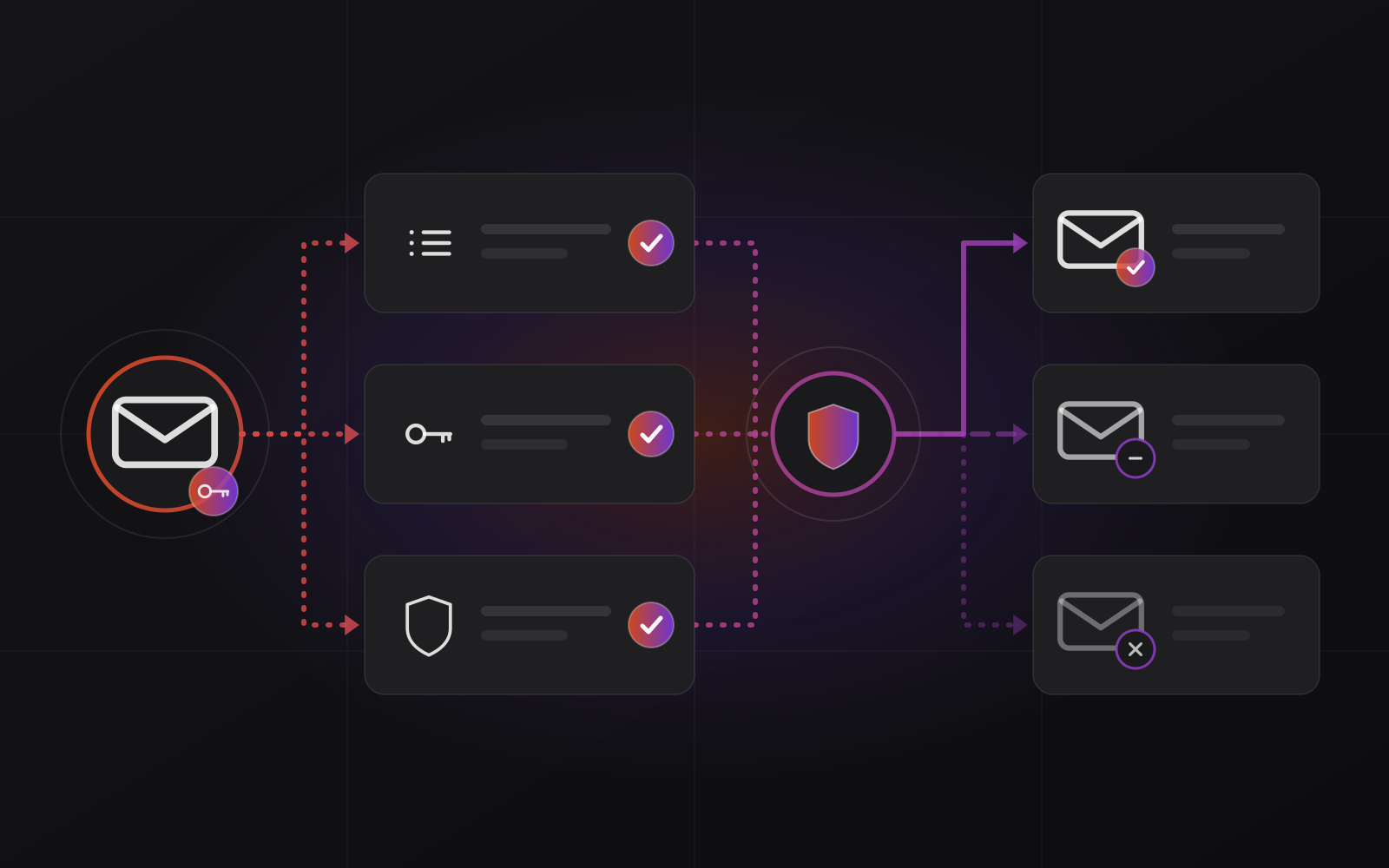
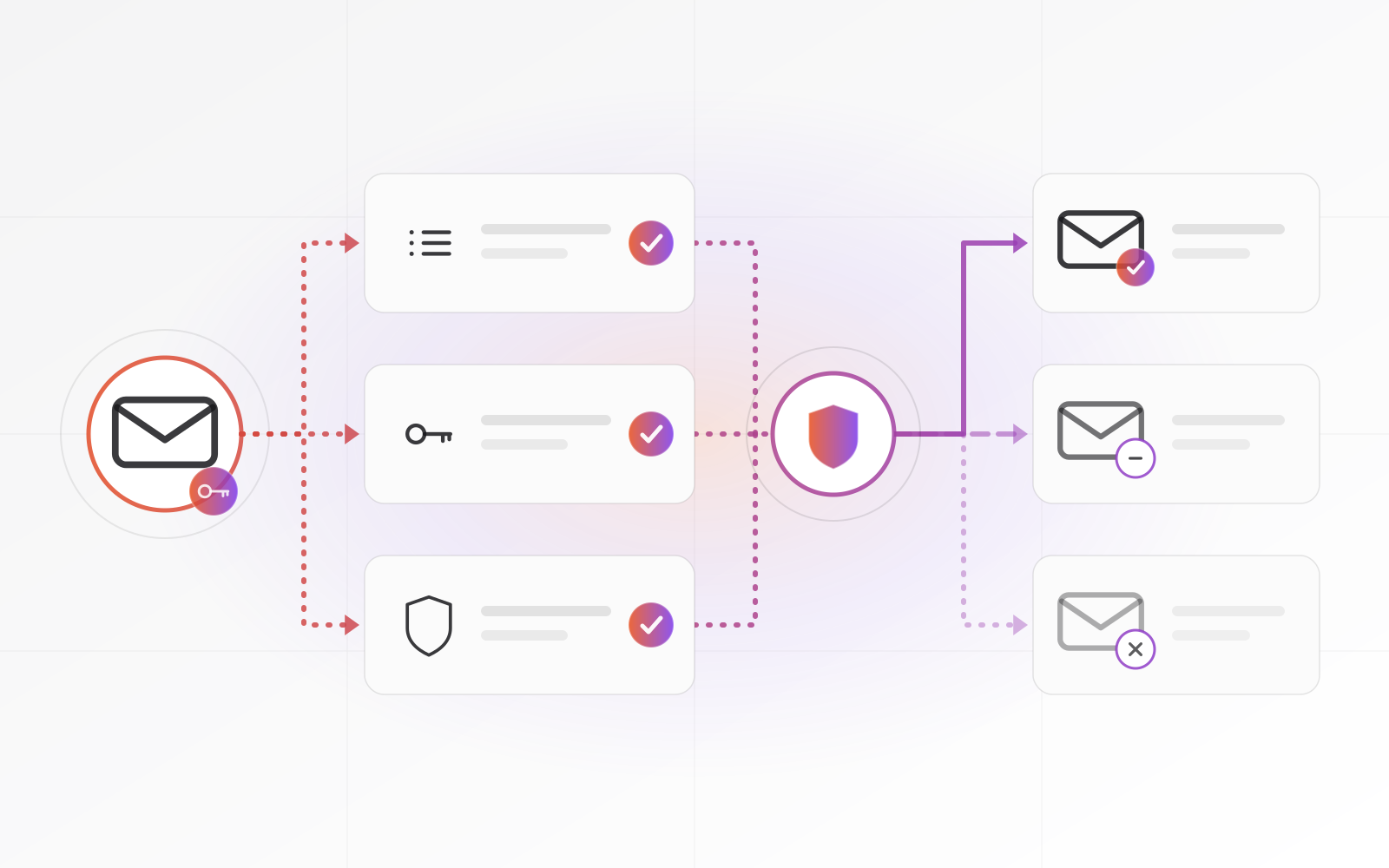
Roll out DMARC safely: none, quarantine, reject
Do not start at reject. Your domain probably sends mail from places you have forgotten: the website contact form, the invoicing system, the CRM, the ERP, the newsletter tool, the helpdesk, the scanner that emails PDFs. Block those too early and you block your own invoices.
Step 1: p=none for two to four weeks
Publish the record with p=none and a reporting address. Nothing is blocked. Receivers start sending daily aggregate reports, which are XML files nobody enjoys reading, so use a free or low-cost DMARC report viewer. List every system that sends as your domain and fix each one so it passes SPF or DKIM with alignment. p=none only watches. Only quarantine and reject protect you.
Before you move from none to quarantine, check this list.
- Every system that sends as your domain is on a written list
- Each one passes SPF or DKIM, aligned with your From address
- Two weeks of reports show your real senders passing
- Someone owns the DMARC mailbox and reads the reports
- Staff know who to tell if mail goes missing
Step 2: p=quarantine
Once the reports show your real senders passing, move to quarantine. Failing mail now goes to spam. Watch for a couple of weeks and ask staff to report anything missing.
Step 3: p=reject
Reject tells receivers to refuse mail that fails. This is the step that stops people forging your domain. Keep reading the reports monthly, because every new tool that sends as you must pass before it goes live. For domains that never send mail, publish v=spf1 -all and a reject policy straight away.
p=none only watches. Only quarantine and reject protect you.
Gmail and Yahoo bulk-sender rules, and Outlook's
Since February 1, 2024, Google's sender guidelines require every sender to Gmail accounts to authenticate with SPF or DKIM. Bulk senders, meaning more than 5,000 messages a day to Gmail, must use both, publish a DMARC policy (p=none is enough), align the From domain with SPF or DKIM, and offer one-click unsubscribe on marketing mail. Google also asks for TLS and valid forward and reverse DNS on sending servers, and says to keep the spam rate below 0.10 percent and never reach 0.30 percent. Yahoo announced matching rules at the same time.
Microsoft followed with similar rules for Outlook.com, Hotmail.com and Live.com: from May 2025, senders of more than 5,000 messages a day need SPF, DKIM and DMARC. A 12-person office is not a bulk sender, but the SPF-or-DKIM requirement applies to everyone, and one newsletter to a large list can cross the 5,000 line in a single send. Set everything up now rather than during a deliverability crisis.
Migrate mailboxes without losing mail
A migration is mostly about order. Do the slow, safe steps first and flip the switch last.
- Create the new workspace, verify domain ownership with a TXT record, and create the mailboxes with MFA on.
- Lower the TTL of your MX records to 300 seconds a day or two ahead, so the cutover spreads quickly.
- Copy old mail with an IMAP migration tool, such as Google's data migration service or the IMAP migration in Microsoft's Exchange admin center. Start early, because the first copy can take days.
- Publish SPF, DKIM and DMARC (p=none) for the new provider, and remove the old provider from SPF.
- Change the MX records at a quiet time, such as an evening or weekend, then run a final sync.
- Keep the old mailboxes open for a week or two, because some mail still reaches the old servers while DNS settles.
- Reconnect phones and Outlook, send a test to a free Gmail address and open "Show original". SPF, DKIM and DMARC should all say PASS.
- Put the new mailboxes under backup, because a deleted mailbox or a hijacked account is hard to recover otherwise.
Our domain and professional email setup service runs the whole sequence if you would rather not do it on a weekend.
Frequently asked questions about business email
Do I still need SPF, DKIM and DMARC if I use Google Workspace or Microsoft 365?
Yes. The provider supplies the values, but you publish them in your domain's DNS. Without them, receivers cannot verify your mail, and since 2024 Gmail expects SPF or DKIM from every sender. Both Workspace and Microsoft 365 show the records to add in their admin consoles.
Which DMARC policy should I start with?
Start with p=none and a reporting address. It blocks nothing, so it cannot break your mail, and the reports show every system sending as your domain. Move to quarantine, then reject, once those senders pass. Staying at p=none forever gives you reports but no protection.
Why does my email land in spam when SPF and DKIM pass?
Authentication proves who sent a message, not that it is wanted. Spam placement also depends on sender reputation, a new domain or IP, list quality, complaint rates and the content itself. Remove bounced and inactive addresses, send from a consistent address, and avoid sudden jumps in volume.
Can DMARC block my own website forms or invoices?
Yes, once the policy is quarantine or reject. A form or invoicing tool that sends as your domain without passing SPF or DKIM will be filtered. Fix it first: send through your mail provider with authenticated SMTP, or add the tool's SPF include and DKIM key. Reports under p=none show which tools need work.
Is self-hosting email worth it for a small business?
Rarely. You take on IP reputation, blocklists, spam filtering, patches, backups and uptime, and one deliverability problem can stop invoices reaching customers. It can make sense with strict data-residency needs and someone who will run it weekly. Otherwise a hosted provider costs you less time.
Where to go next
If you want the records, the DMARC rollout and the migration handled for you, see our domain and professional email setup service. Pair it with the MFA and password guide, or talk to us about the systems that send mail for your business.
Related articles