
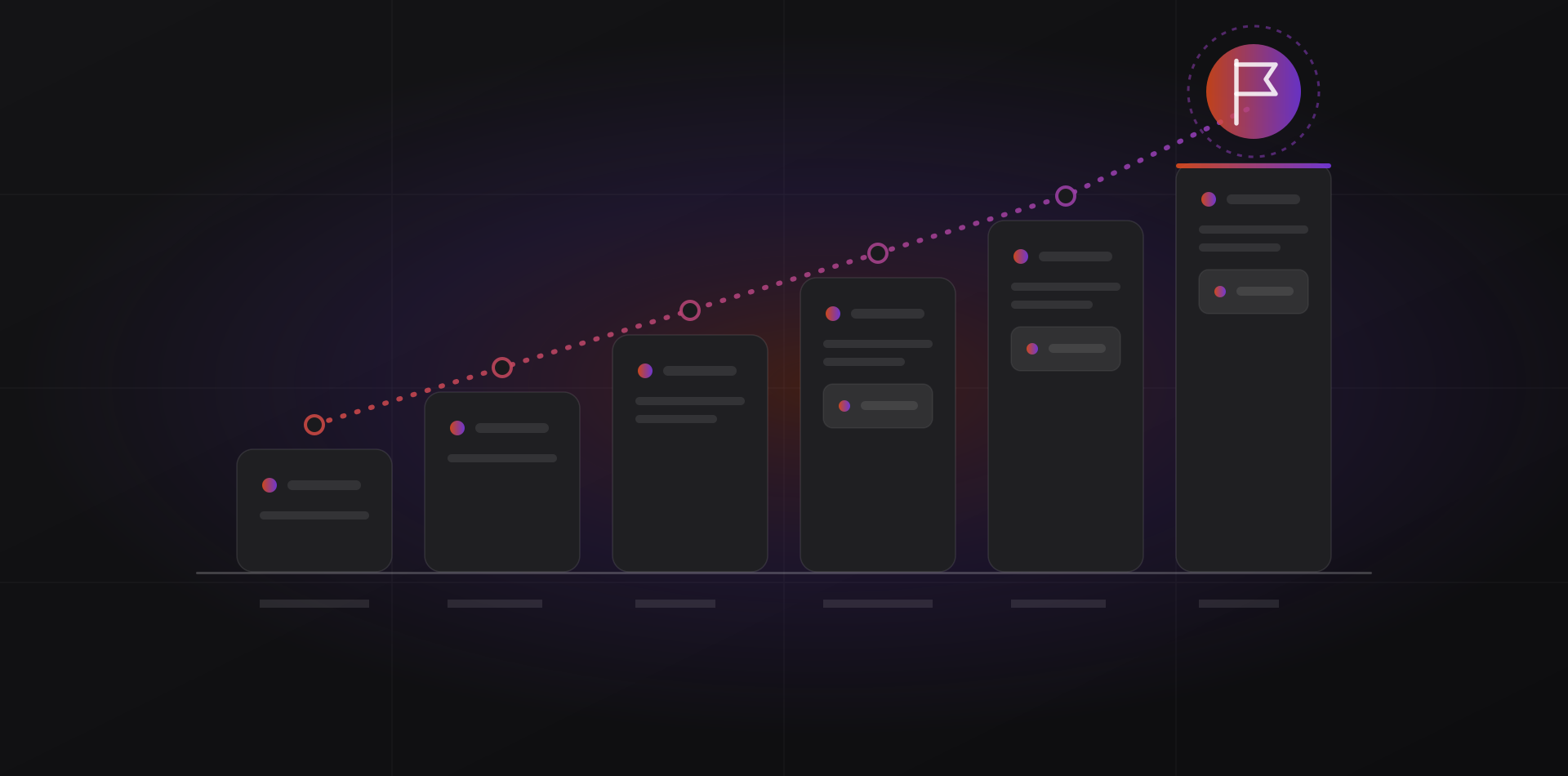
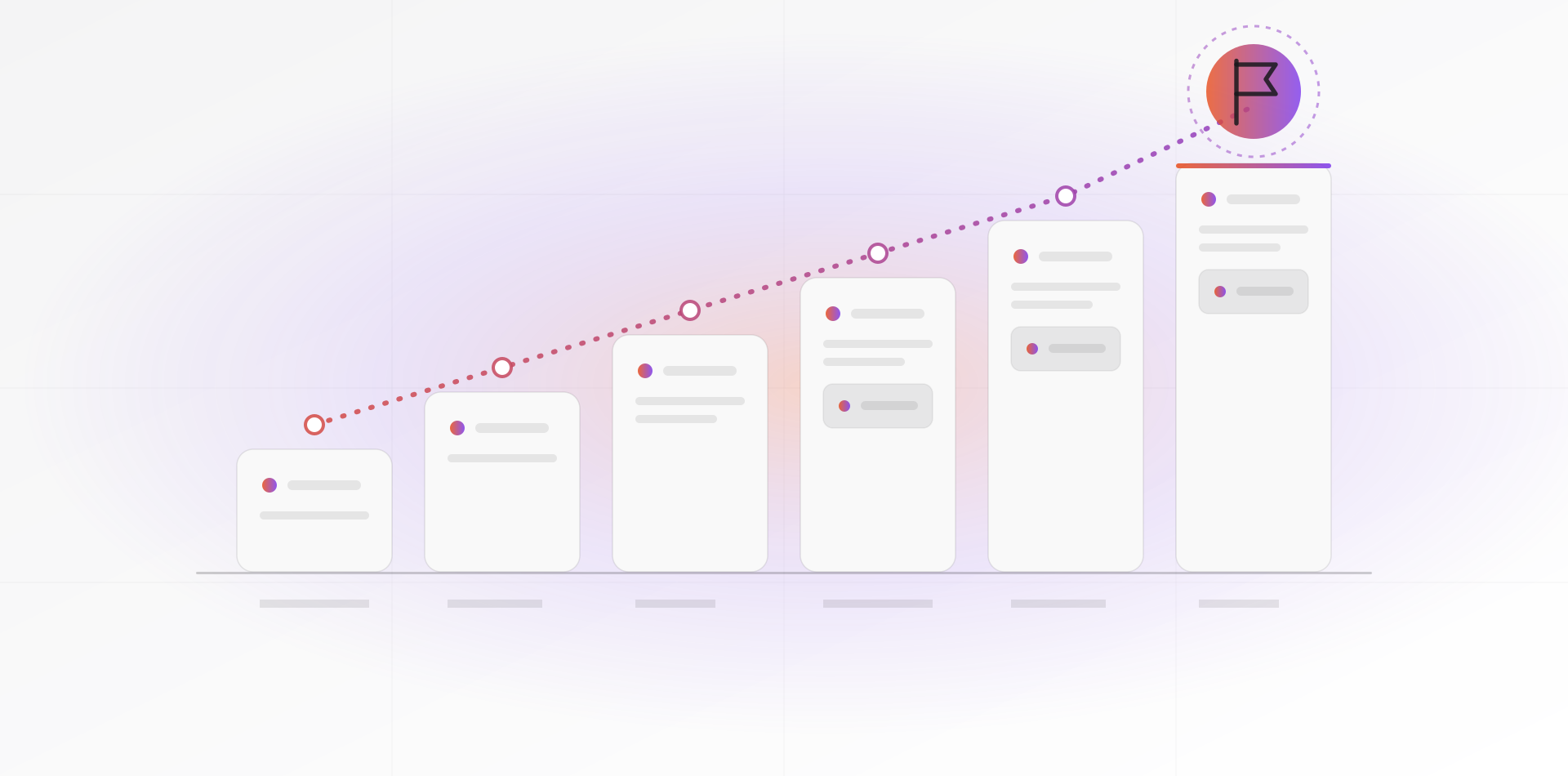
The ERP implementation steps that matter, in order: scope and owners, process maps, clean data, configuration before customization, a parallel run, training by role, a quiet go-live and a closely watched first month. Skip one and you pay for it later.
Software is the easy part. Decisions, data and habits decide whether a project finishes. This guide is for owners and office managers who have already chosen a system (if you have not, start with what an ERP is and which route to take). Picture a 15-person distributor moving off spreadsheets and a desktop accounting package; a larger company follows the same steps over a longer calendar.
Step 1: Define scope, owners and the date
Write down what release one does, in two sentences. For example: quotes, invoices and stock for the main warehouse. Purchasing, payroll and manufacturing come later. Everything else goes on a written phase-two list, so nobody feels ignored and nothing sneaks in.
Then name people. You need one project owner on your side, with the authority to decide and real hours each week. Add a process owner for sales, purchasing, stock and accounts: the person who knows how the work really gets done, not the person with the title. Bring your accountant in from week one, because the chart of accounts and the opening balances are theirs.
Pick the go-live date last, and put it at the start of a period: the first of a month, a quarter or a fiscal year. Avoid your peak season and avoid year-end close. A new system and a busy week do not mix.
- A two-sentence scope for release one, plus a written phase-two list
- One project owner who can decide, with half a week free for the project
- A process owner for sales, purchasing, stock and accounts
- Your accountant involved from the first meeting
- A go-live date at the start of a period, away from peak season
- A rule for scope changes: who can say yes, and what moves if they do
Step 2: Map your processes, then configure before you customize
Take one real order and follow it on paper, from the customer's first request to cash in the bank. Then do the same for one purchase, from need to paid supplier bill. Note who touches each step, which document or spreadsheet they use, and every workaround. Do this with the people who do the work, not only their managers.
Every sticky note and side spreadsheet is a clue. It is either a step the system should support or a habit you can drop. Set the map beside how the ERP handles the same flow. Where the two differ, you decide: change the process or change the system. Change the process by default.
Configuration versus customization
Configuration means using the settings the vendor built: tax rates, numbering, price lists, approval rules, document templates, user roles. It survives upgrades. Customization means new or changed code: extra logic, bespoke screens, special reports. Each one must be re-tested at every upgrade, and it ties you to whoever wrote it.
Our rule is simple. Customize only when the gap costs real money, breaks a legal requirement, or is the reason customers choose you. Everything else, adapt. When you do customize, keep the work in a separate add-on module and never edit the vendor's core files. Otherwise every update becomes a rescue job.
Every customization is a promise to keep maintaining it.
Step 3: Clean and migrate your data
Data is where schedules slip. Treat it as its own workstream with its own owner, starting in week one. Handle three kinds of data differently.
Master data is customers, suppliers and items. Clean it before you load it. Remove duplicates, fix missing tax IDs (the ICE in Morocco), standardize names and units, and give every item one stable code. Load active records only. Archive the customer you last invoiced in 2019.
Opening balances come from your accountant: the trial balance on the cutover date. Add the open items as individual documents, not one lump sum. Unpaid customer invoices and supplier bills must stay separate, so you can still apply payments to them. Stock quantities come from a physical count on the cutover date, valued at cost. Set up items and locations first, as described in inventory management in an ERP.
History is rarely worth migrating line by line. Keep the old system read-only for lookups. Bring in summarized sales history only if you need it to suggest reorders.
Then rehearse. Load a test copy of the new system at least twice, and reconcile after each load. An afternoon of checking spares you weeks of chasing gaps later.
- Active customers, suppliers and items loaded equal the cleaned file
- Total receivables match the old ledger to the last cent
- Total payables match the old ledger to the last cent
- Stock value equals the counted quantities times cost
- The trial balance balances and matches your accountant's closing figures
- Ten sample records, checked by hand by the person who knows them
Step 4: Test with real documents, run in parallel, then train
Demo data hides problems. Test with your own paperwork: a real quote, a real invoice with its real VAT, a purchase order, a return, a month-end. Ask the people who will use the system to run it, and write down what confuses them. Confusion on a test day is cheap. On go-live day it is expensive.
A parallel run means running the business in both systems for one full period and comparing results. It is the strongest safety net you can build, and it doubles the typing. So limit it to where errors hurt most: invoicing, stock and the books.
A lighter version replays your last closed month in the new system from source documents. If the totals match what your accountant signed off, you have most of the proof at a fraction of the cost. Set an end date either way. A parallel run with no end date quietly becomes the new process.
Train by role, on the real screens, in the last two weeks before go-live. Training given three months early is forgotten by the time it counts. The warehouse clerk needs receiving and picking. The controller needs the ledger. Write one page per role, and name a super user in each team who answers the first questions.
Go-live day and the first month
Go-live is a rehearsed script, not an event. Write a timed cutover plan. Freeze the old system at a set hour and take a full backup of it, as our guide on why your business needs a backup system explains. Load the final data, reconcile, then let users in.
Give each step an owner and a clock time. Agree the rollback rule in advance, for example: if receivables do not reconcile by noon, we stay on the old system and try again next period.
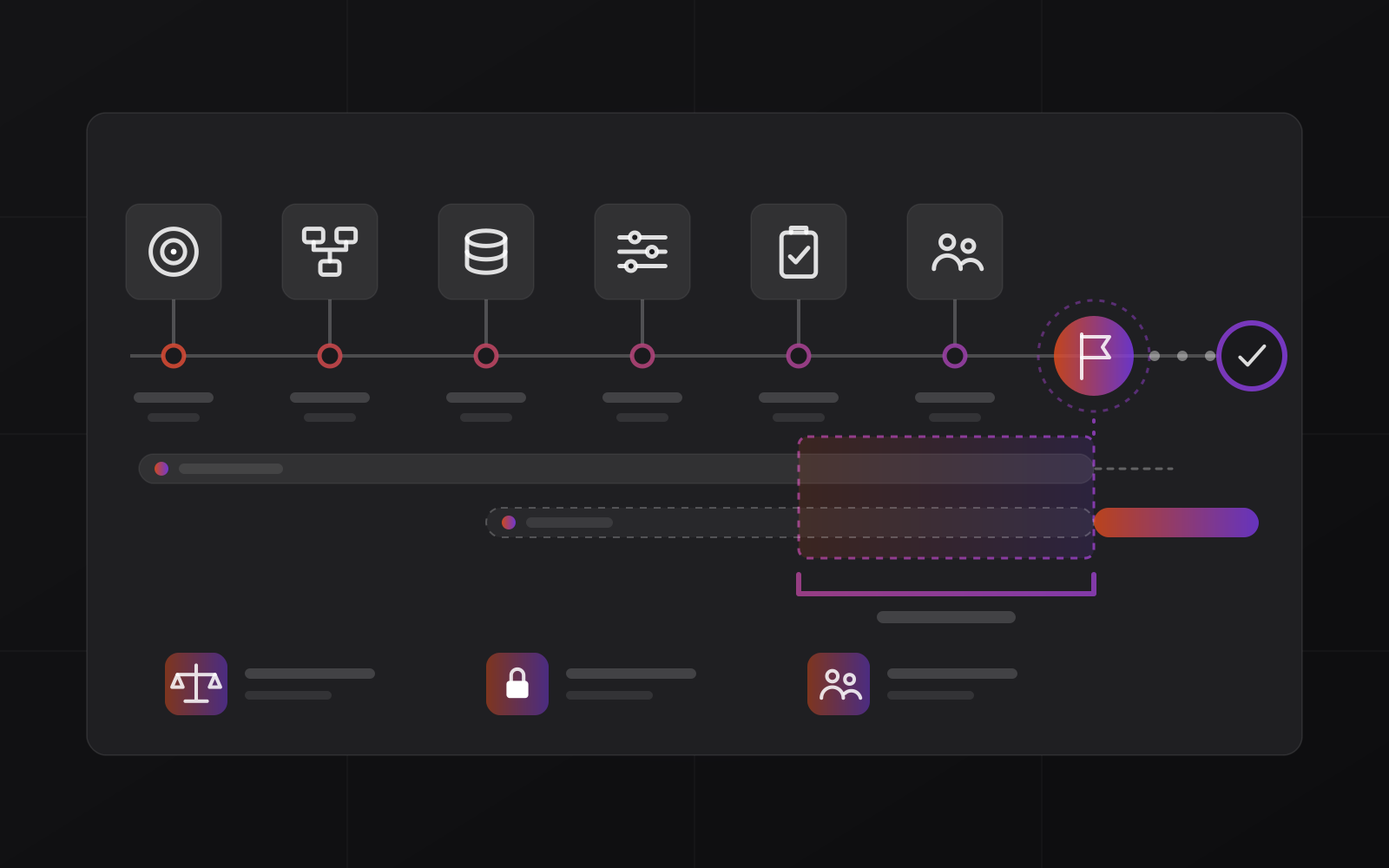
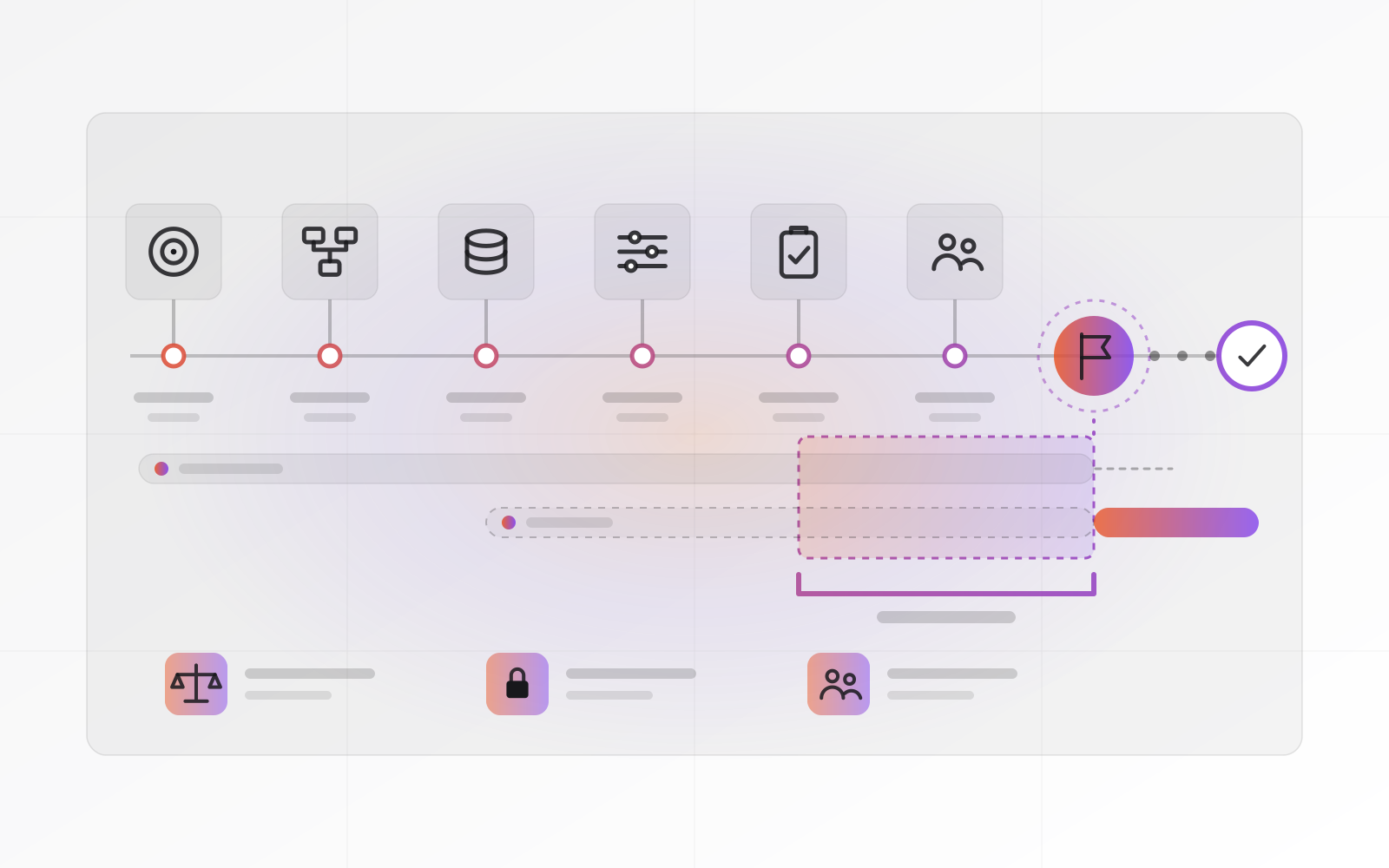
Microsoft's go-live readiness list for Dynamics 365 asks for the same things in its own words: signed-off acceptance testing, a data migration plan, a cutover plan, completed user training and a production support plan.
On day one, expect slow work. Keep the project owner and your developer or vendor close, and seat the super users next to their teams. Keep one shared list of issues: who raised each, how urgent it is, and who is fixing it.
The first month decides whether people trust the system. Meet for 15 minutes every morning for two weeks, then weekly. Fix master-data errors fast, because they multiply with every document.
Run the first month-end close in the new system and compare the reports with what your accountant expects. Hold phase-two requests until that close is done. After it, make the old system read-only and keep the backup.
Why ERP implementations fail
Projects rarely fail on technology. They fail in predictable ways:
- Nobody owns the project, so decisions wait for a meeting that never happens
- Scope grows a little each week until the date is fiction
- Dirty data is loaded as it is, and the new system inherits the old mess
- The ERP is bent to copy the old way of working, then breaks at every upgrade
- Training is squeezed into the last two days
- Go-live lands in the busiest week of the year
- Nobody reconciles, so the first month-end shows a gap no one can explain
The fix for most of these is dull: an owner, a written scope, a data workstream and a calm date. Dull is good. Nobody has ever thanked an ERP project for being exciting.
Frequently asked questions about ERP implementation
How long does an ERP implementation take?
It depends on scope, data quality and how fast you decide. A focused first release for a small team, such as invoicing and stock, usually takes weeks to a few months, not years. Clean data and a named owner shorten it. Every extra module and customization lengthens it.
What is the difference between configuration and customization in an ERP?
Configuration changes settings the vendor already built, such as tax rates, approval rules and templates, and it survives upgrades. Customization changes or adds code. It can fit exactly, but it must be re-tested at every upgrade. Configure first.
Do I need a parallel run?
Not always, but you need some proof before you switch. A full parallel run for one period is the strongest, and it doubles data entry. A lighter alternative is replaying your last closed month in the new system and matching your accountant's figures. Skip both, and your first month-end becomes the test.
What data should I migrate to a new ERP?
Migrate active customers, suppliers and items, the trial balance as of the cutover date, open invoices and bills as individual documents, and a counted stock quantity per item. Leave years of closed history in a read-only archive. Clean the data first, because the new system repeats whatever errors you load.
Who should lead an ERP implementation?
A person on your side who knows the business, can decide without asking three others, and has hours set aside every week. Often that is an operations or finance manager, not IT. The vendor or developer supplies the system and the method. You supply the decisions.
Where to go next
If you want a second pair of eyes on your plan, send us your process notes, your item list and the tool you use today. We set up ERP systems for small and mid-size businesses, and we will tell you plainly if your scope is too big for a first release. You can read about custom ERP development, compare options in ERP software for small business, or book a call.
Related articles