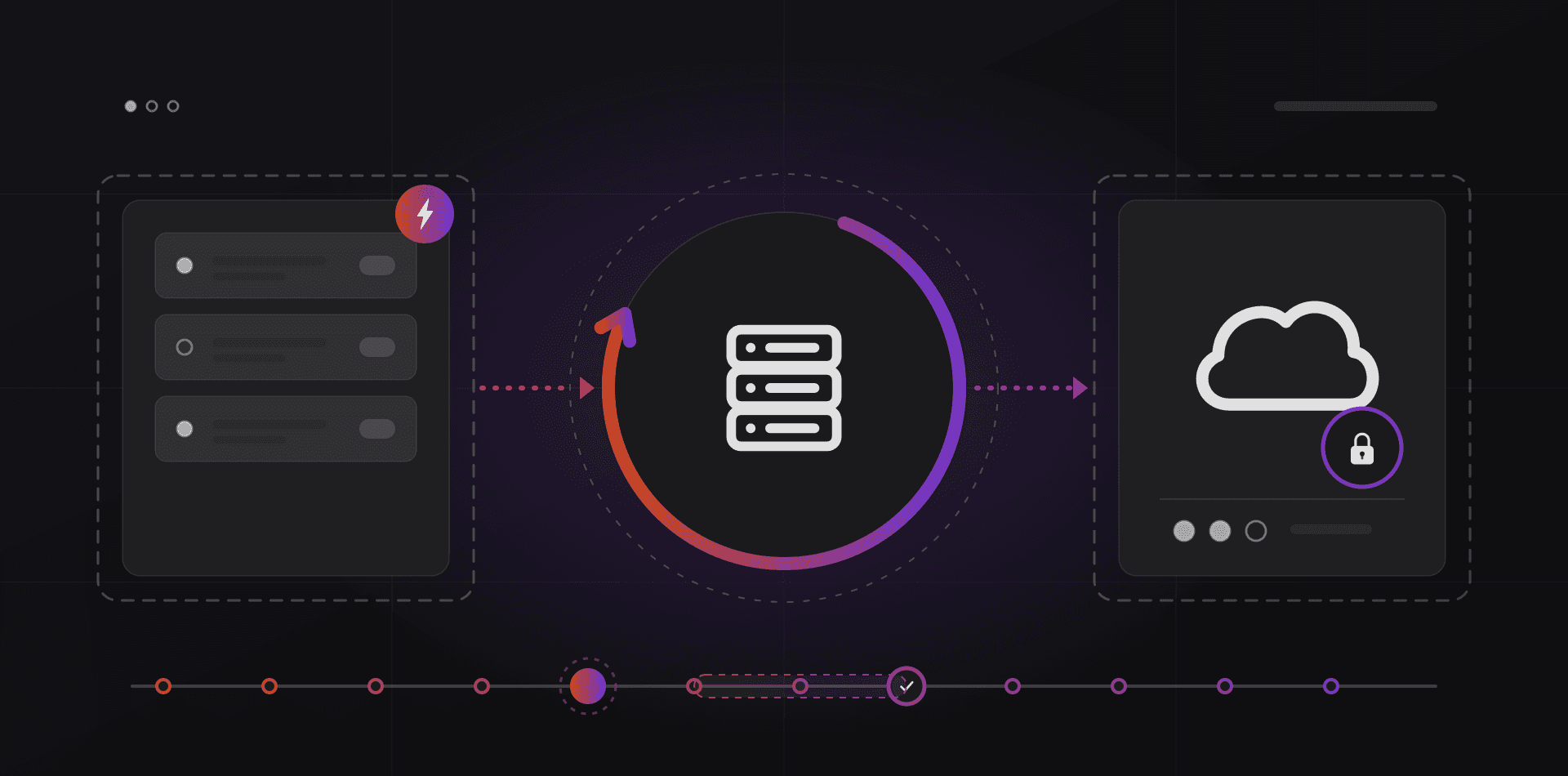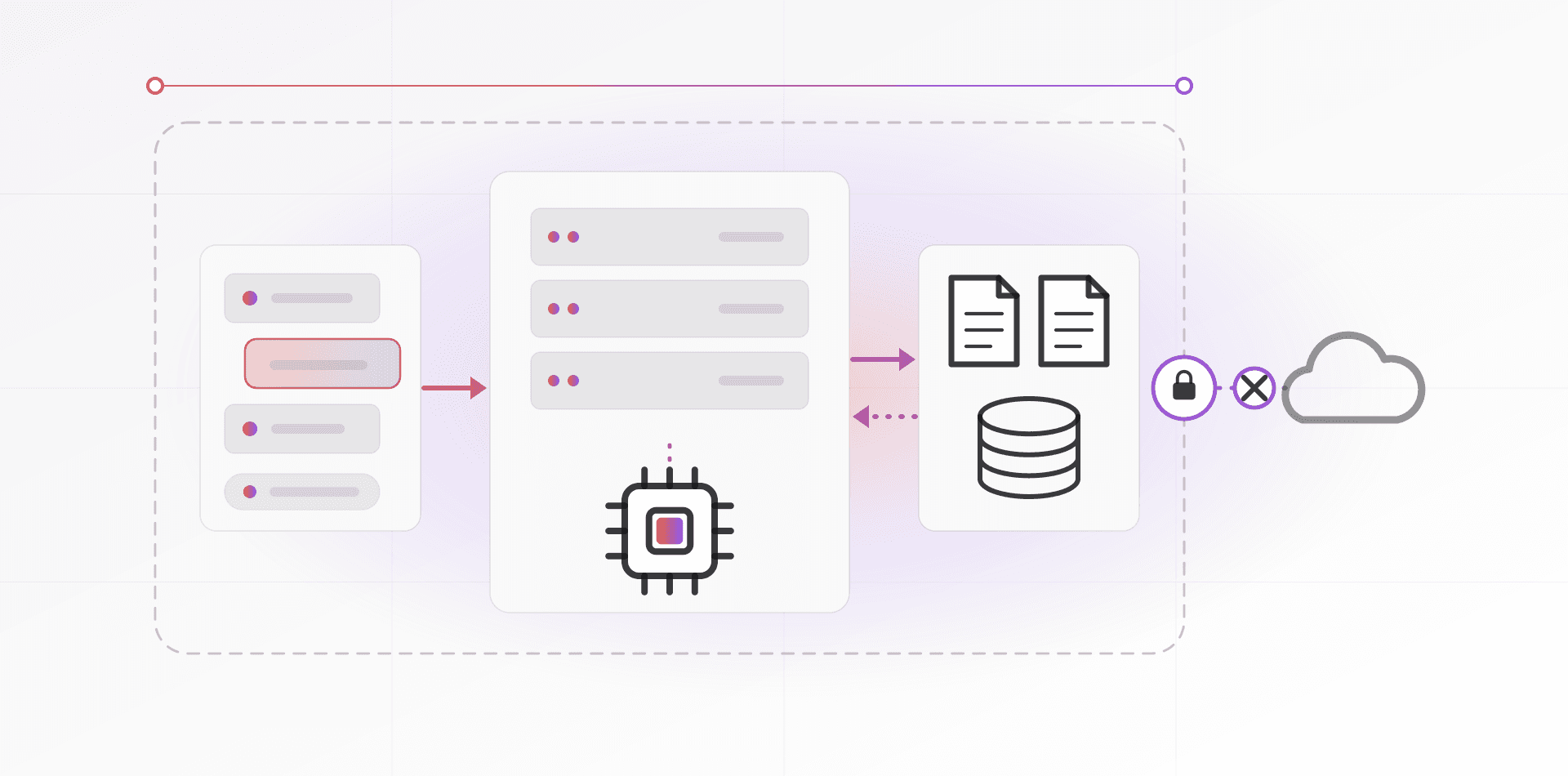

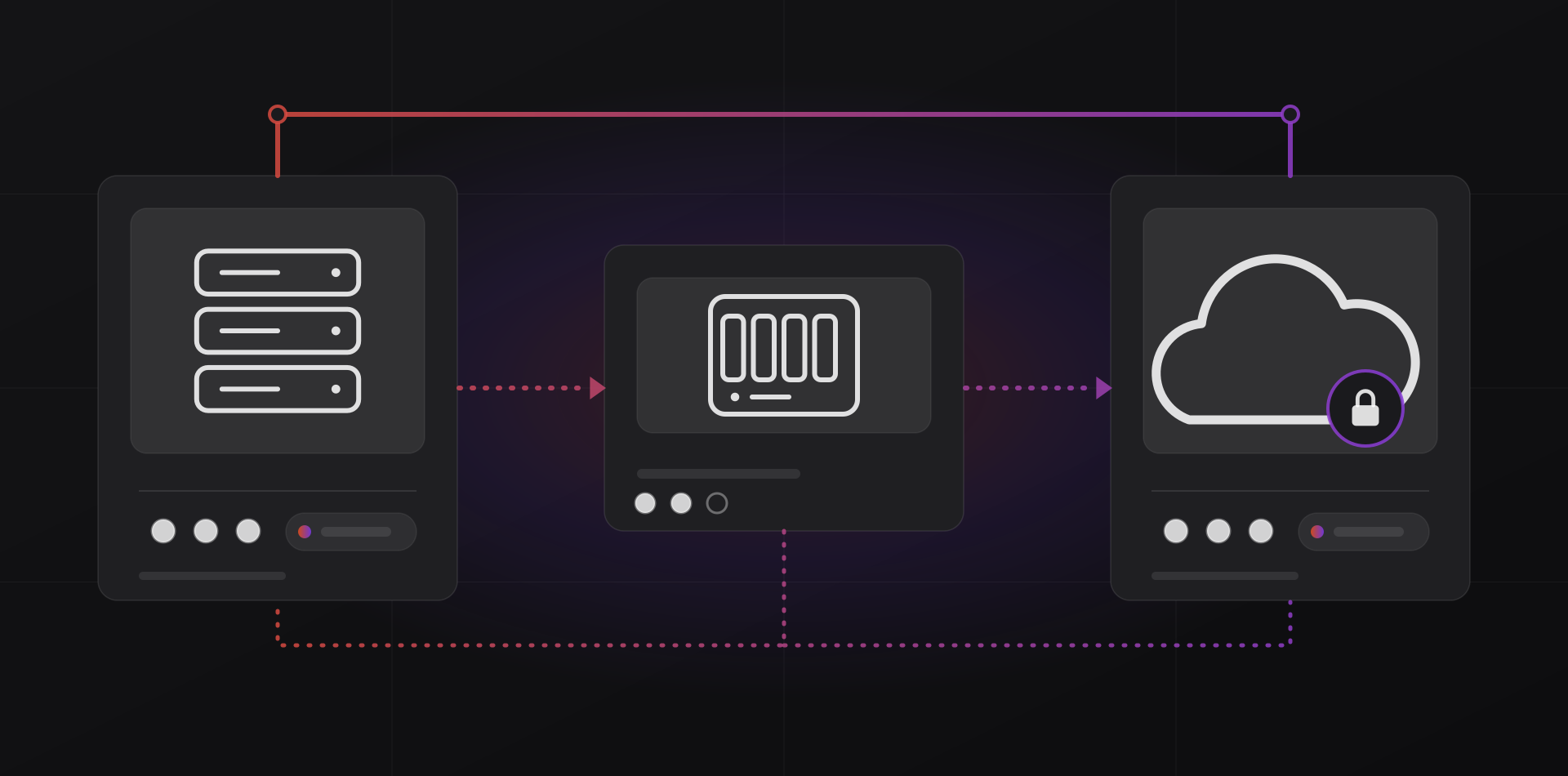
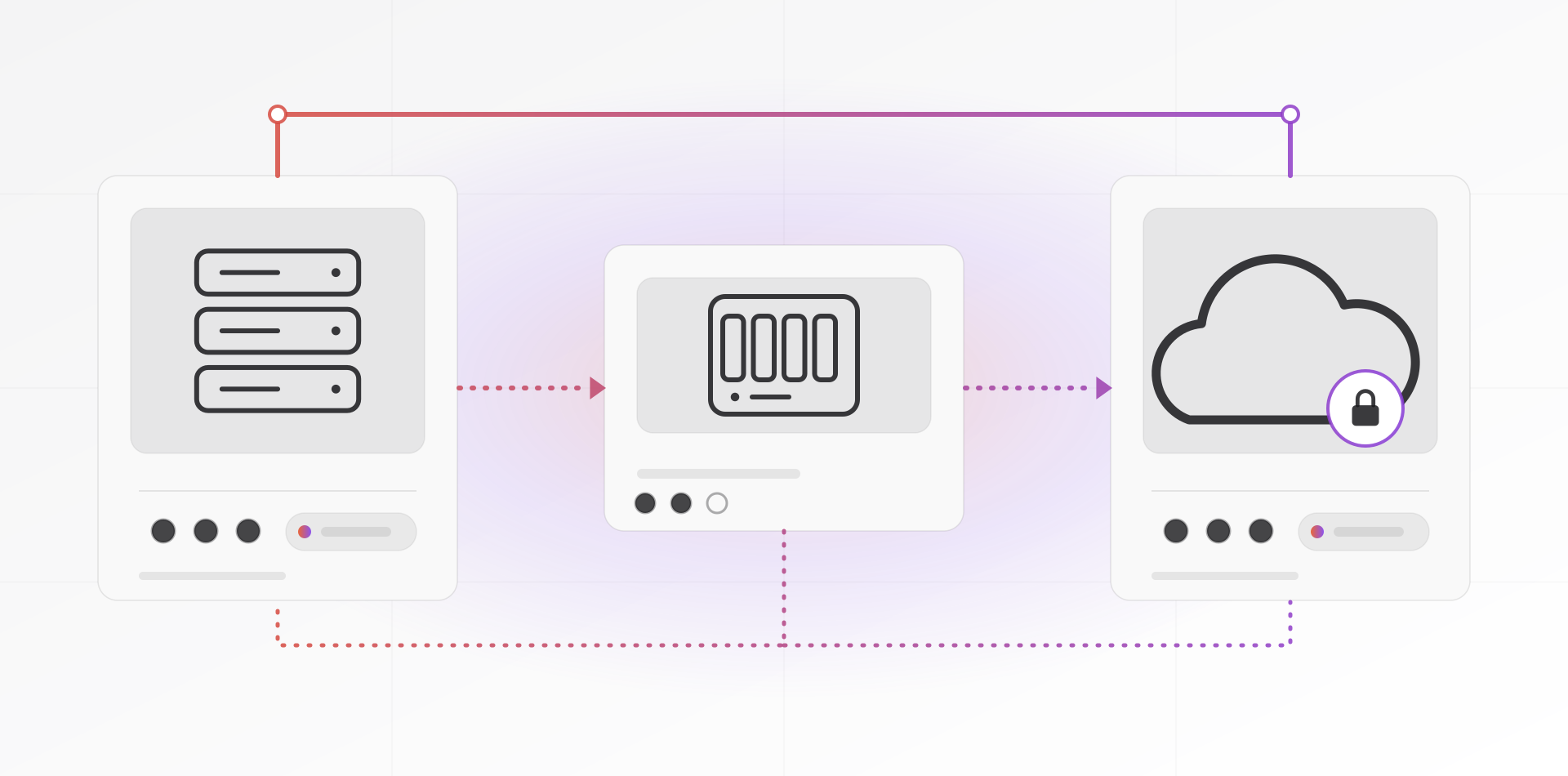
Local server vs cloud for small business comes down to what you run. File shares and chatty ERP databases like a server in the office. Email, documents and most newer software are happier in the cloud. Most offices end up with both, and that is a sound answer, not a compromise.
This guide is for owners and office managers who have to buy, renew or replace something. The options are a physical server, a NAS (a network storage box), cloud services, or a mix. We cover what each is good at, what quietly goes wrong, and how to decide.
What each option actually is
A local server is a computer in your office that the other computers talk to. It might hold shared folders, the database behind your ERP, print queues or everyone's logins. It runs Windows Server or Linux, and someone has to look after it.
A NAS is a storage appliance with its own simple operating system, such as the boxes from Synology or QNAP. It is excellent at file sharing and backups, and it is easier to run than a full server. It is less suited to hosting an application the business cannot live without.
The cloud covers two different things. Software as a service, like Microsoft 365 or Google Workspace, means someone else runs the application and you rent it. A rented virtual server (a VPS or cloud VM) is simply a server in somebody else's data center. You still patch it and back it up yourself.
Where a local server wins
File shares and large files
Your office network usually moves data at gigabit speed or better, and nothing leaves the building. Picture a 500 MB design file. On a gigabit link it opens in seconds. Over a 20 Mbps upload connection, the same file takes more than three minutes to send.
ERP and database software
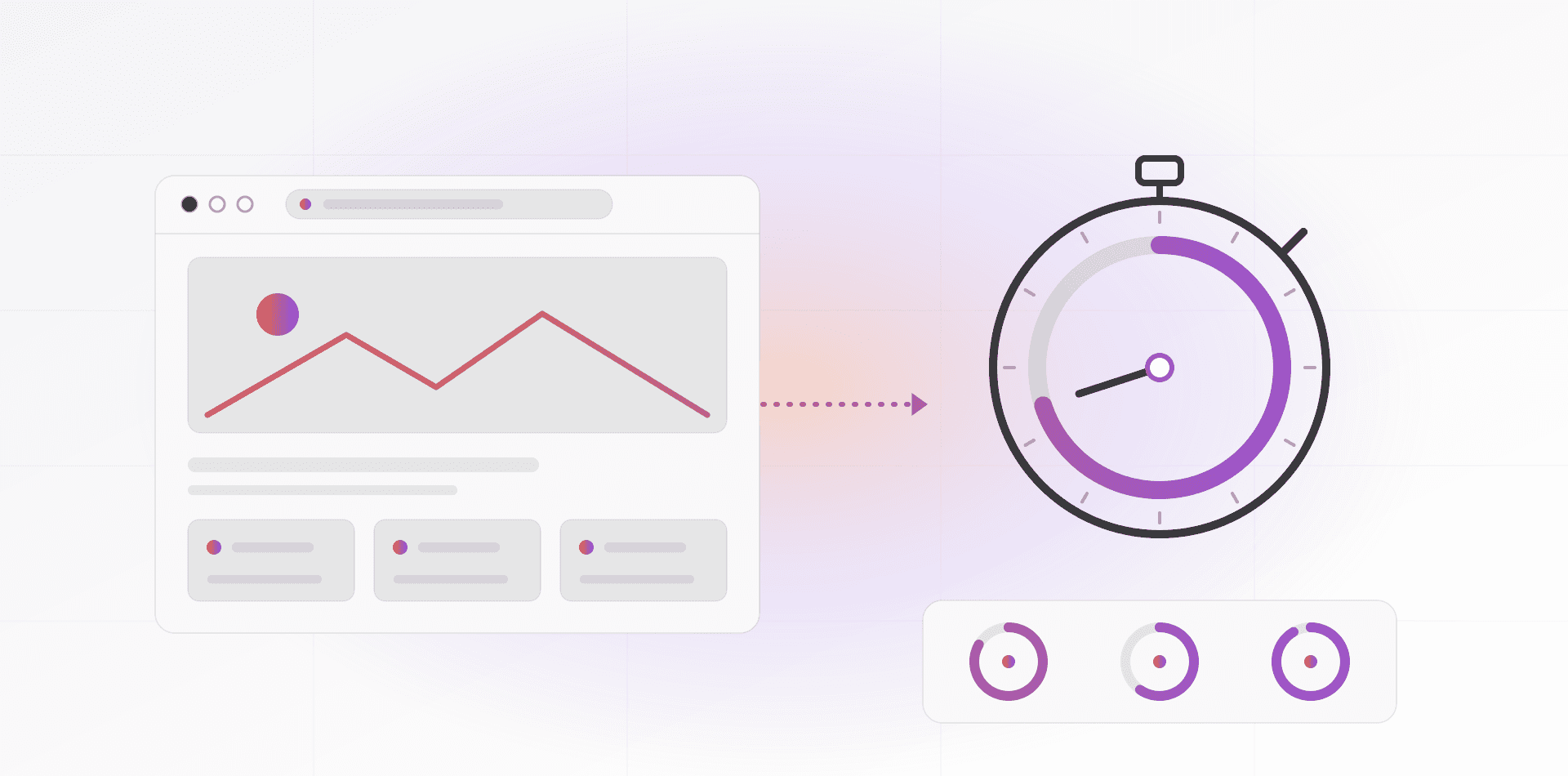
Many older ERP and accounting programs are chatty. They ask the database dozens of small questions to draw one screen. On a LAN each round trip takes well under a millisecond. Across the internet, each one typically costs tens of milliseconds, and the screen that loaded instantly now crawls.
Browser-based ERP systems are built for the internet and do not have this problem. Desktop clients that expect their database next door often do.
When the internet goes down
A local server keeps working when the line drops. Shared folders open, the ERP runs, the label printer prints. A cloud-only office stops. If a day offline costs you real money, keep the critical system local, or add a second internet line such as a 4G or 5G failover router.
Devices that live in the building
Scanners, CCTV recorders, card readers and label printers sit on your LAN. They want a server or NAS nearby, not a cloud account.
Where the cloud wins
Email, calendars, documents and chat belong in the cloud. Running your own mail server today is a hobby, not a business decision. Microsoft 365 and Google Workspace give you reliable mail, shared documents and access from any device.
Remote staff and several sites are the second reason. A cloud service needs no VPN and no static IP address. People sign in from home, the shop or a client's office, and it behaves the same everywhere.
The third reason is hardware you never touch. The provider handles power, cooling, spare disks and physical security. Microsoft's own shared responsibility model is clear about the limit, though. In every setup you keep responsibility for your data, your accounts and the devices people use.
The bill changes shape too. A server arrives as one large purchase plus your time. Cloud arrives as a monthly fee per user or per resource that never stops. Neither is automatically cheaper, so count the staff time on both sides.
Power, cooling, backups and who looks after it
These unglamorous questions decide whether a local server is a good idea. Answer them honestly before you buy hardware.
Power
A UPS (battery backup) buys minutes, not hours. Its job is to let the server shut down cleanly. A power cut in the middle of a database write is how tables get corrupted. Where cuts are common, a UPS is not optional.
Cooling
A server in a closet with no airflow cooks its own disks. Heat shortens drive life and dust finishes the job. Give it ventilation, keep it off the floor, and turn on the temperature alert if the hardware has one.
Backups
RAID keeps the server running when a disk dies. It does nothing when someone deletes the folder. You need a separate copy, and one copy must live off-site. Our guide to backups explains the 3-2-1 rule. The cloud does not remove this need either: a file deleted from a synced folder is deleted everywhere.
RAID keeps the server running when a disk dies. It does nothing when someone deletes the folder.
Who looks after it
A server needs updates, disk checks, a monthly look at the backup report and a person who knows the admin password. "Whoever set it up" is not a plan, especially when they leave. Name an owner for each task. If nobody in the company can do it, hire it out. That is the job of a managed server service.
Hybrid setups that work
Most small offices should not pick a side. They should put each workload where it behaves best. Three patterns come up again and again.
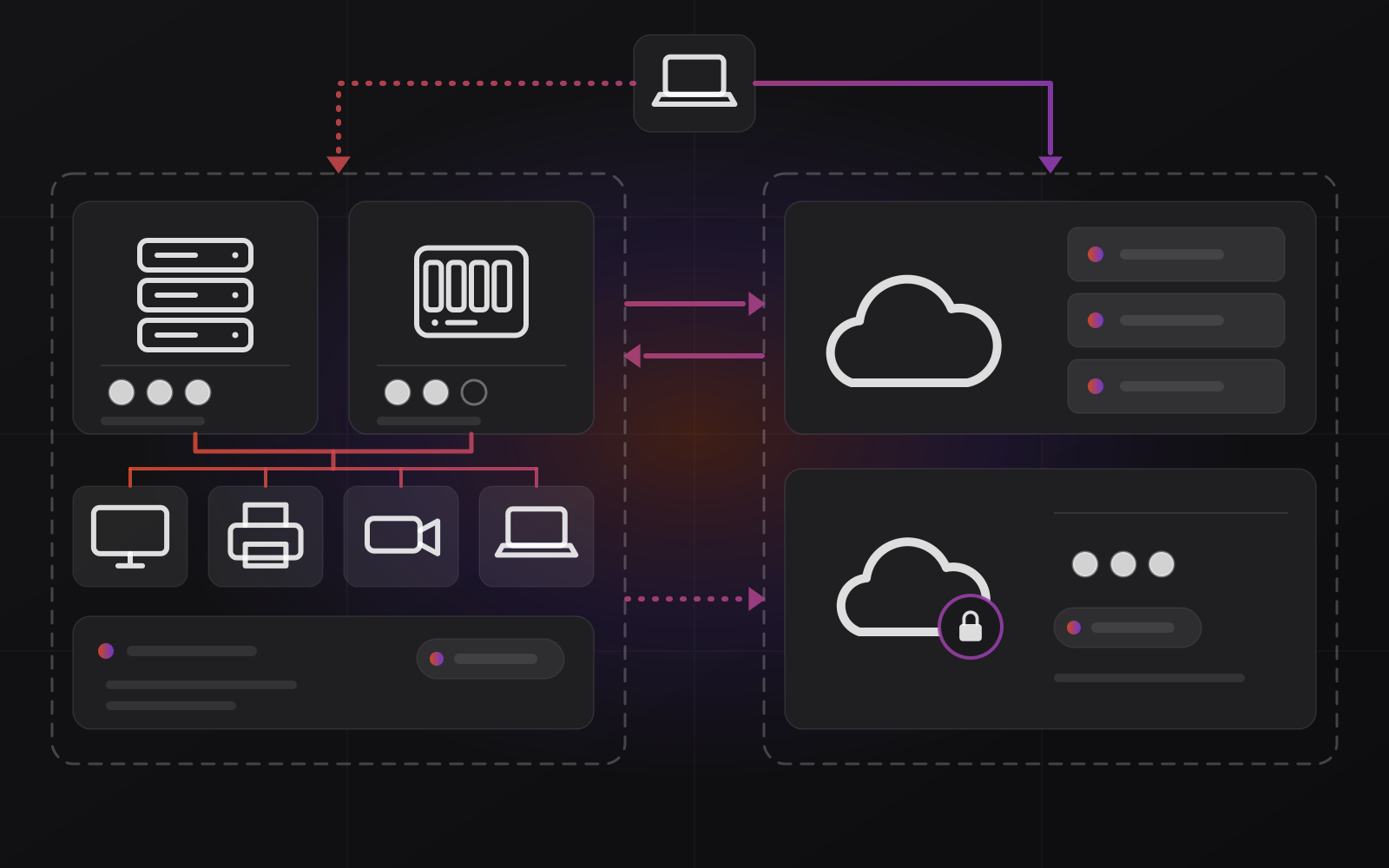
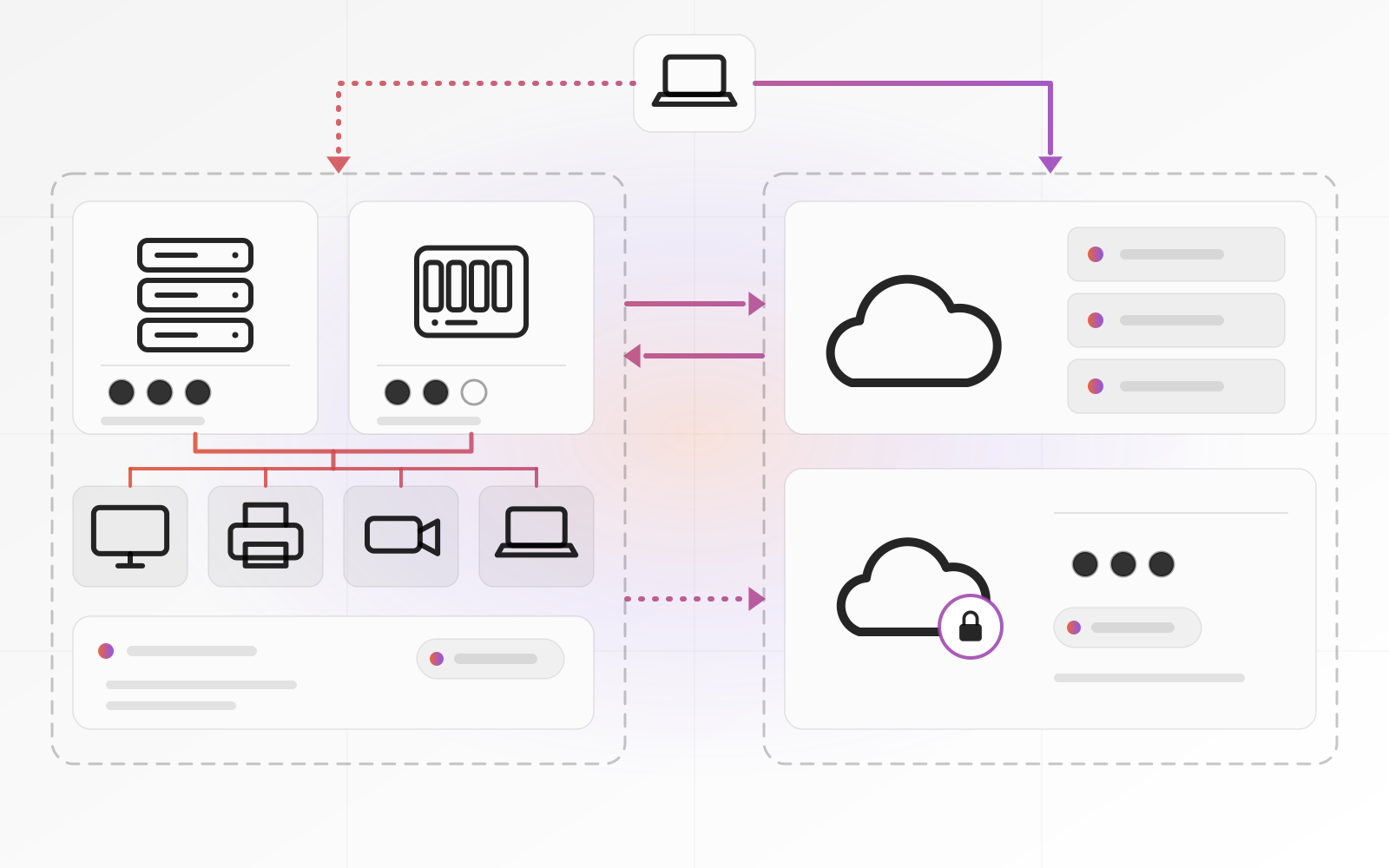
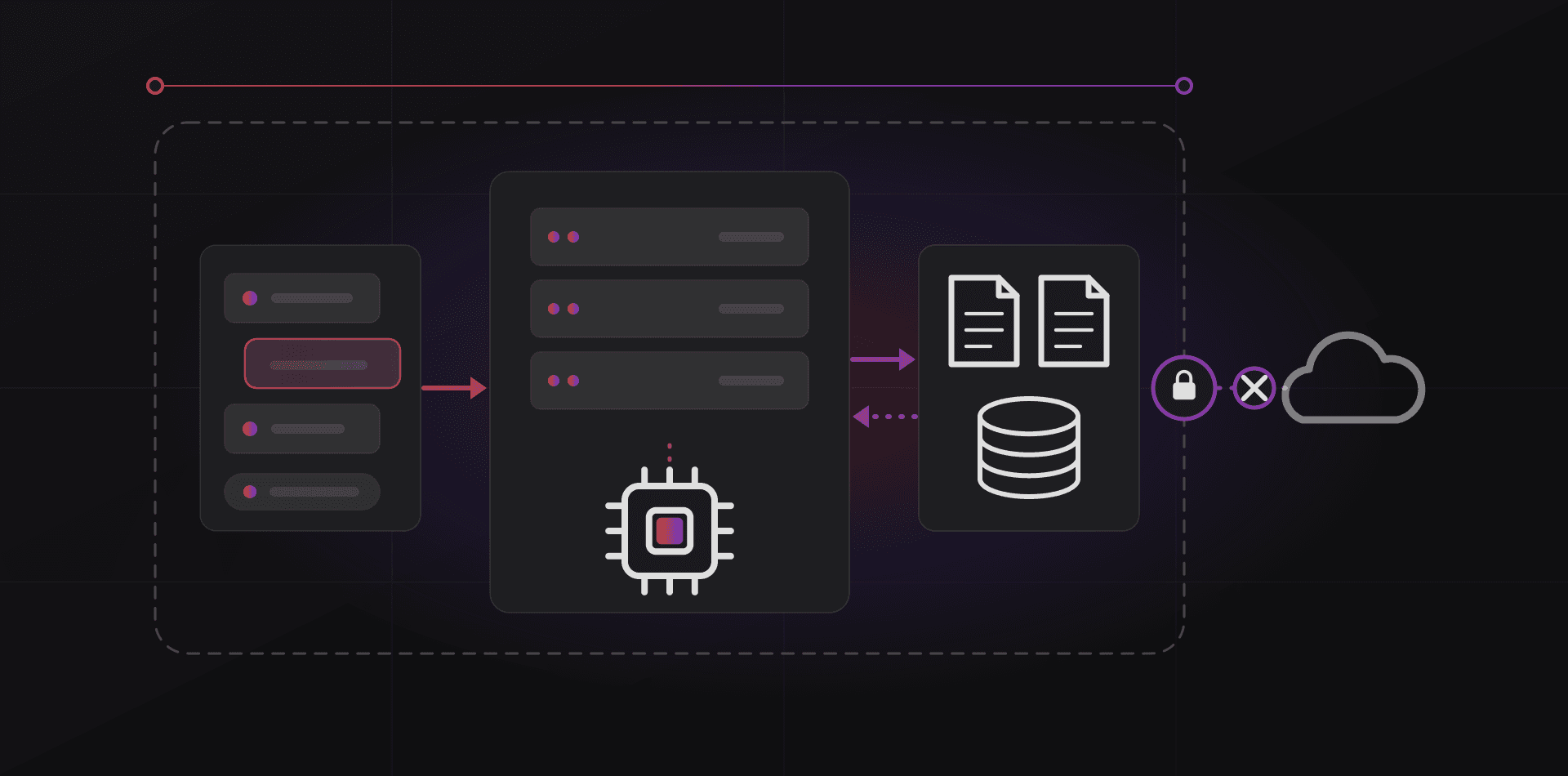
- Cloud for email, documents and chat. A local server or NAS for big files, the ERP database and building devices. An encrypted backup copy sent to the cloud every night.
- Everything stays in the office, and people reach it from outside through a VPN or a zero-trust tunnel. We cover the options in remote access without a static IP.
- A rented VPS for the few tools that must be reachable from anywhere, such as a booking page or a helpdesk, while the office server stays private.
Two patterns backfire. The first is moving a LAN-only desktop ERP to a cloud VM without testing it over a slow link, which gives you a slow ERP. The second is syncing the same folders to a server and to the cloud with both writable. That gives you conflicting copies and arguments.
If you also want central logins and permissions by team, that is a domain controller. Our guide to Active Directory for a small office explains when it pays off.
A decision checklist
Answer these nine questions about your own business. Where the answers cluster is your default, and the rest is detail.
- Does your main business software run in a browser, or does a desktop client need its database next door?
- What is your upload speed, and do you have a second internet line?
- How large are your biggest files, and how often do people open them?
- How long can the office stop before it hurts: an hour, a day, a week?
- Who patches the server, replaces failed disks and reads the backup report? Can you name them?
- Is there a room with stable power, a UPS and air that moves?
- Do people work from home, from other sites or on the road?
- Do any contracts or regulations limit where your data may be stored?
- Where does your off-site copy live, and when did you last restore from it?
Mostly browser-based software, remote staff and a weak server room point to the cloud. Big files, a desktop ERP and a solid server room point to a local server. A real mix of both points to hybrid, which is where most offices land.
Frequently asked questions about local server vs cloud
Is a NAS enough for a small office?
For file sharing and backups, often yes. A NAS suits a small team that mainly needs shared folders and a place to keep backup copies. It is a weaker choice for the ERP database or company logins, where you want more memory, proper vendor support and a recovery plan. Treat it as storage first and an application server second.
Is the cloud cheaper than a local server?
Sometimes, but not by default. A server costs a large amount up front, plus power, a UPS and your time. Cloud spreads the cost into a monthly fee that grows with every user or gigabyte and never ends. Compare three years of both, including who does the maintenance, before deciding.
Can I run my ERP in the cloud?
Yes, if the ERP is built for it. A browser-based ERP runs the same from the office or from home. A desktop ERP that expects its database on your LAN may crawl over the internet, so test it with real data and your real connection before you migrate.
What happens to a cloud-only office when the internet drops?
Anything that needs the cloud stops until the line returns. Reduce the risk with a second connection, such as a 4G or 5G backup router, and keep offline copies of what you cannot work without, like the current price list and customer contacts. Decide in advance who calls the provider.
Do I still need backups if I use Microsoft 365 or Google Workspace?
Yes. The provider keeps the service running, but your data is still your responsibility. A deleted or encrypted file can sync everywhere. A separate backup of mail and documents lets you restore what an employee deletes or an attacker corrupts.
Where to go next
Not sure which way your office leans? Talk it through with us on the contact page. If a physical machine looks right, see how we set up and run a server. If the cloud fits better, start with our cloud hosting and infrastructure page. Whichever you pick, sort out the off-site backup first.
Related articles