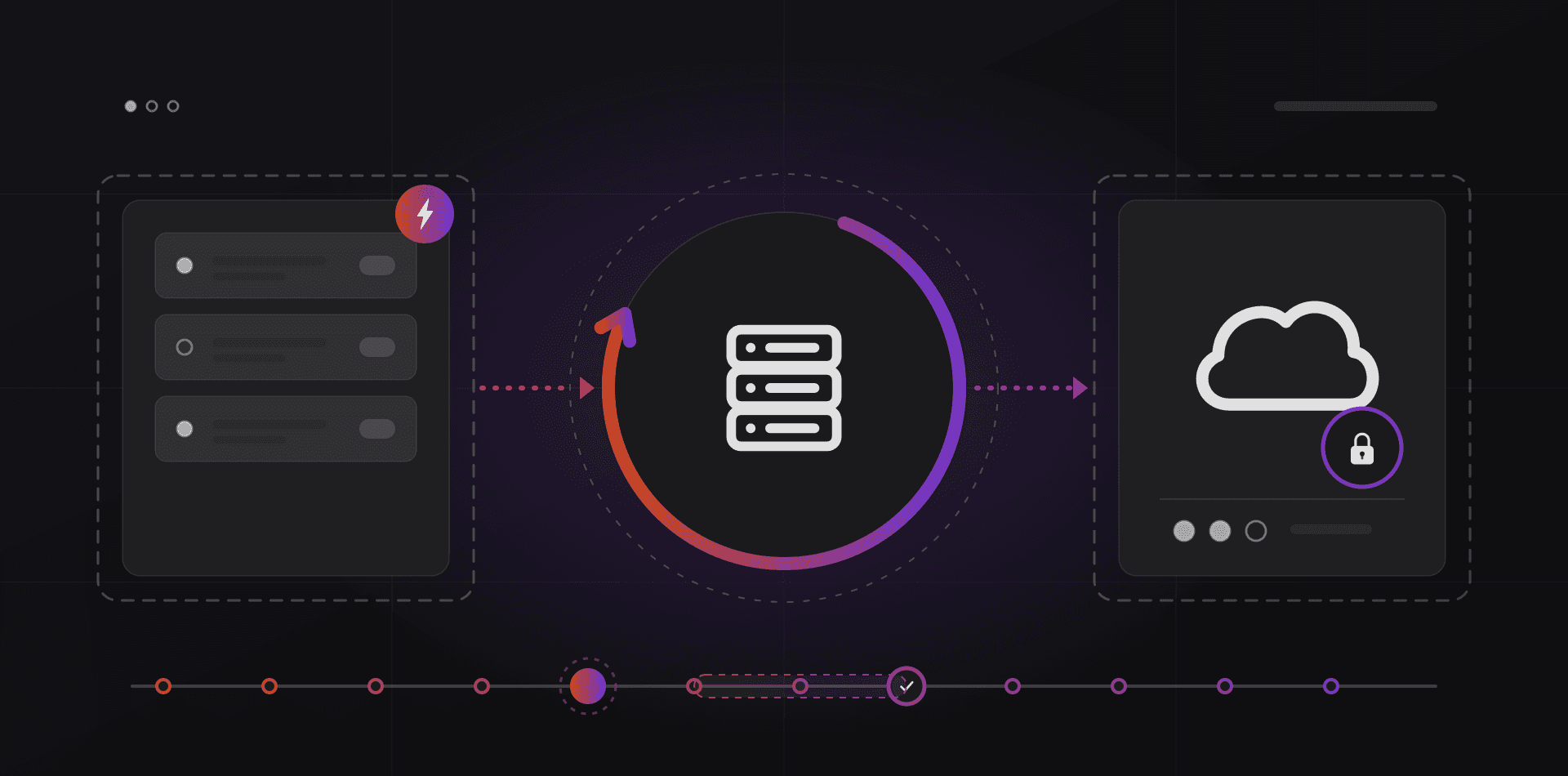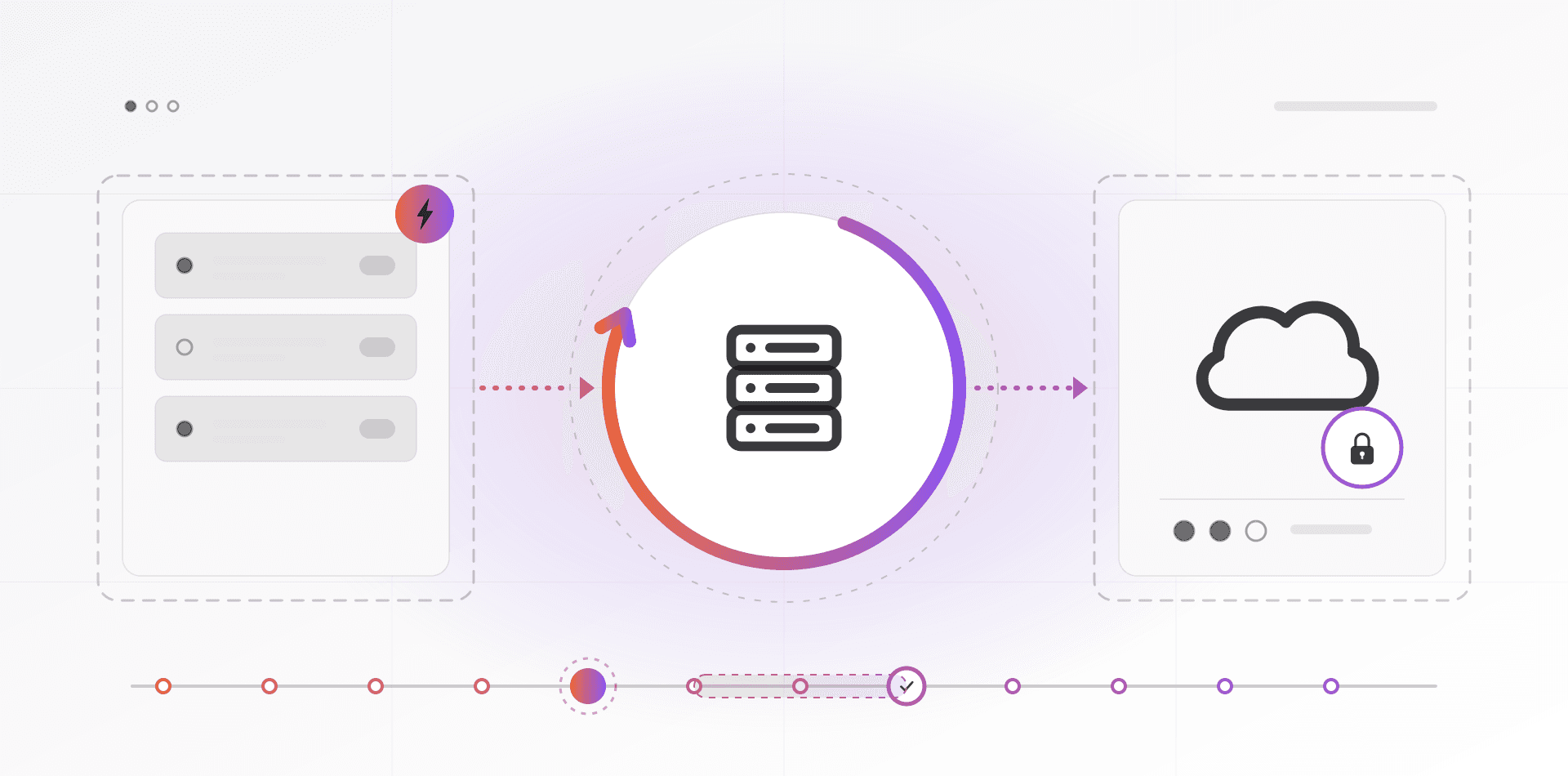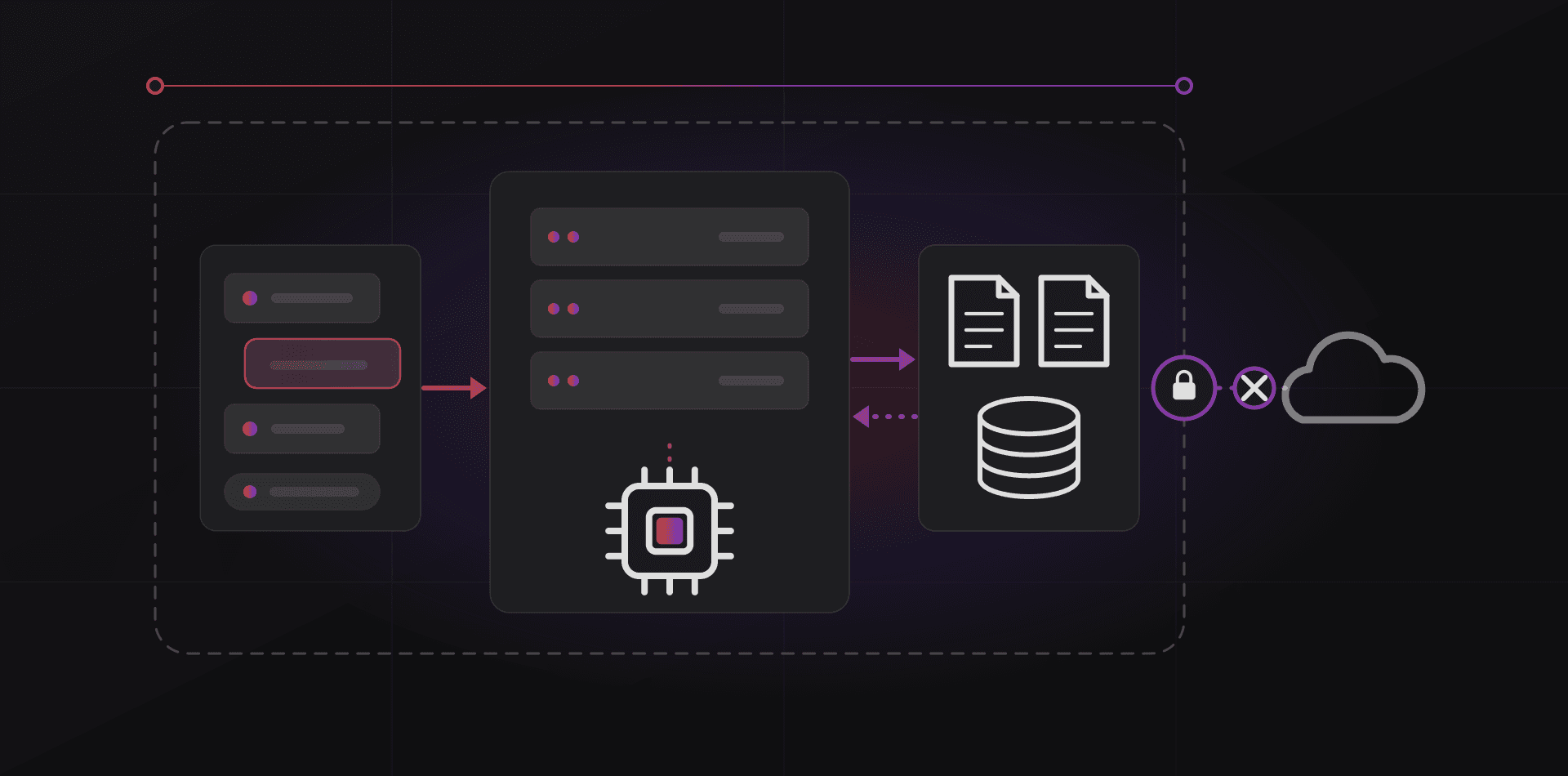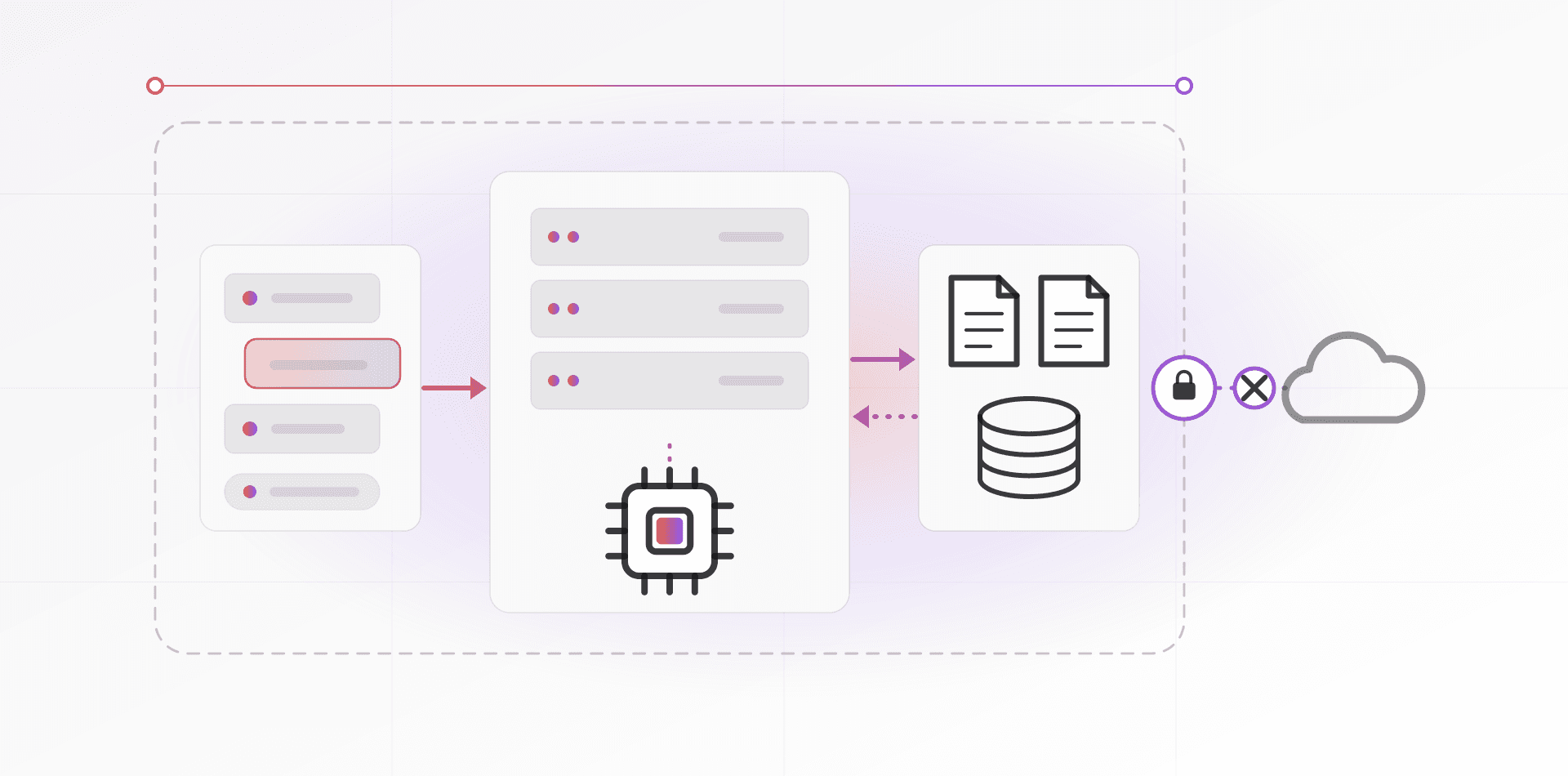

Good small business network design comes down to six decisions: a real firewall at the edge, managed switches, a few VLANs, ceiling-mounted access points, Cat6 cabling and a second internet line. Get those right and the network fades into the background, which is where it belongs.
This guide is for owners and office managers who are moving into new premises, replacing a tangle of consumer gear, or tired of hearing that the internet is slow. You will probably not configure any of it yourself, but you should know what to ask for, so you can tell a sound quote from a padded one.
Start at the edge: the internet line and a proper firewall
Your provider's modem or optical terminal usually has a router built in. In an office it should do one job: bring the line in. Put it in bridge mode, or place your own firewall directly behind it.
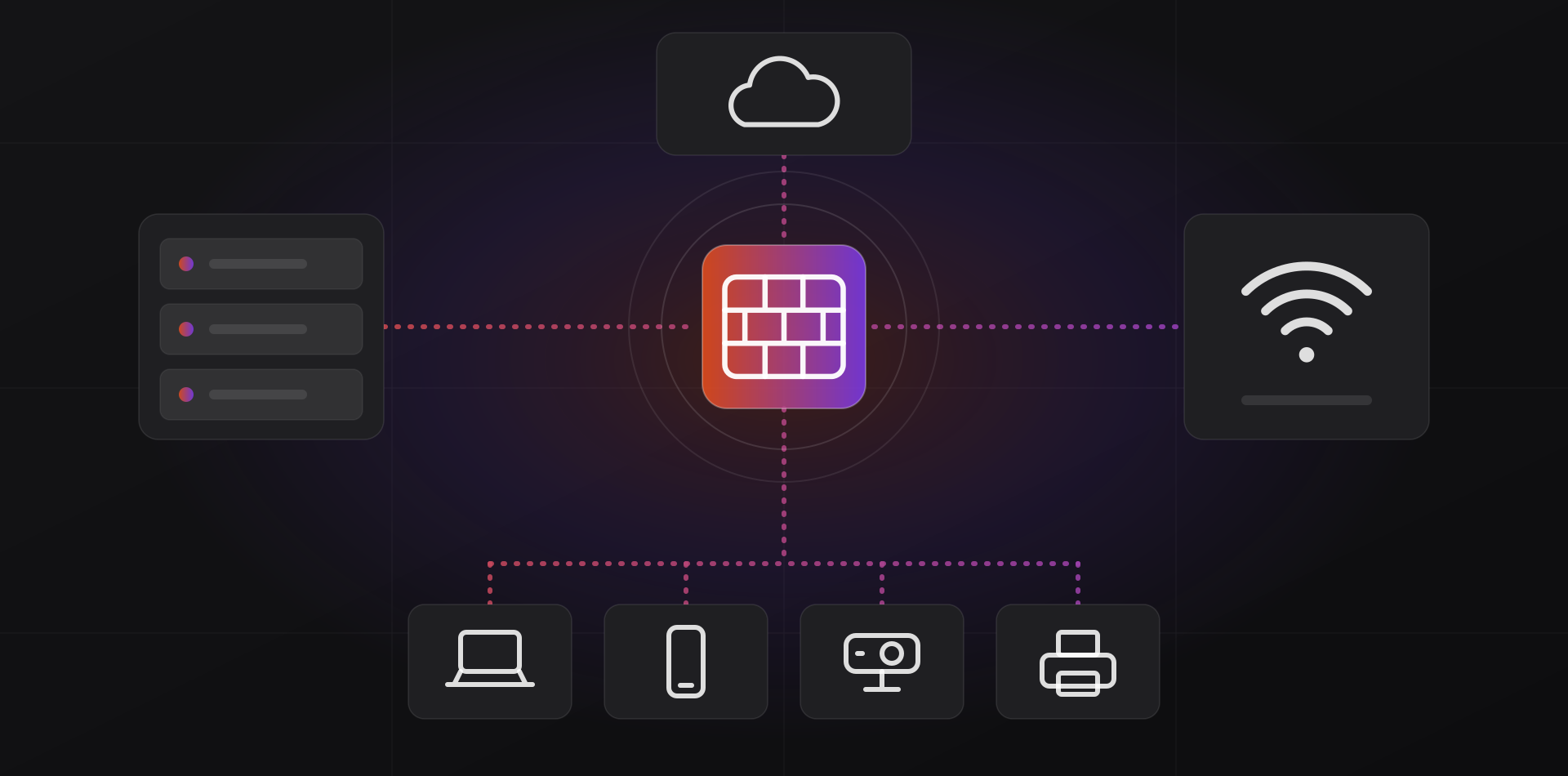
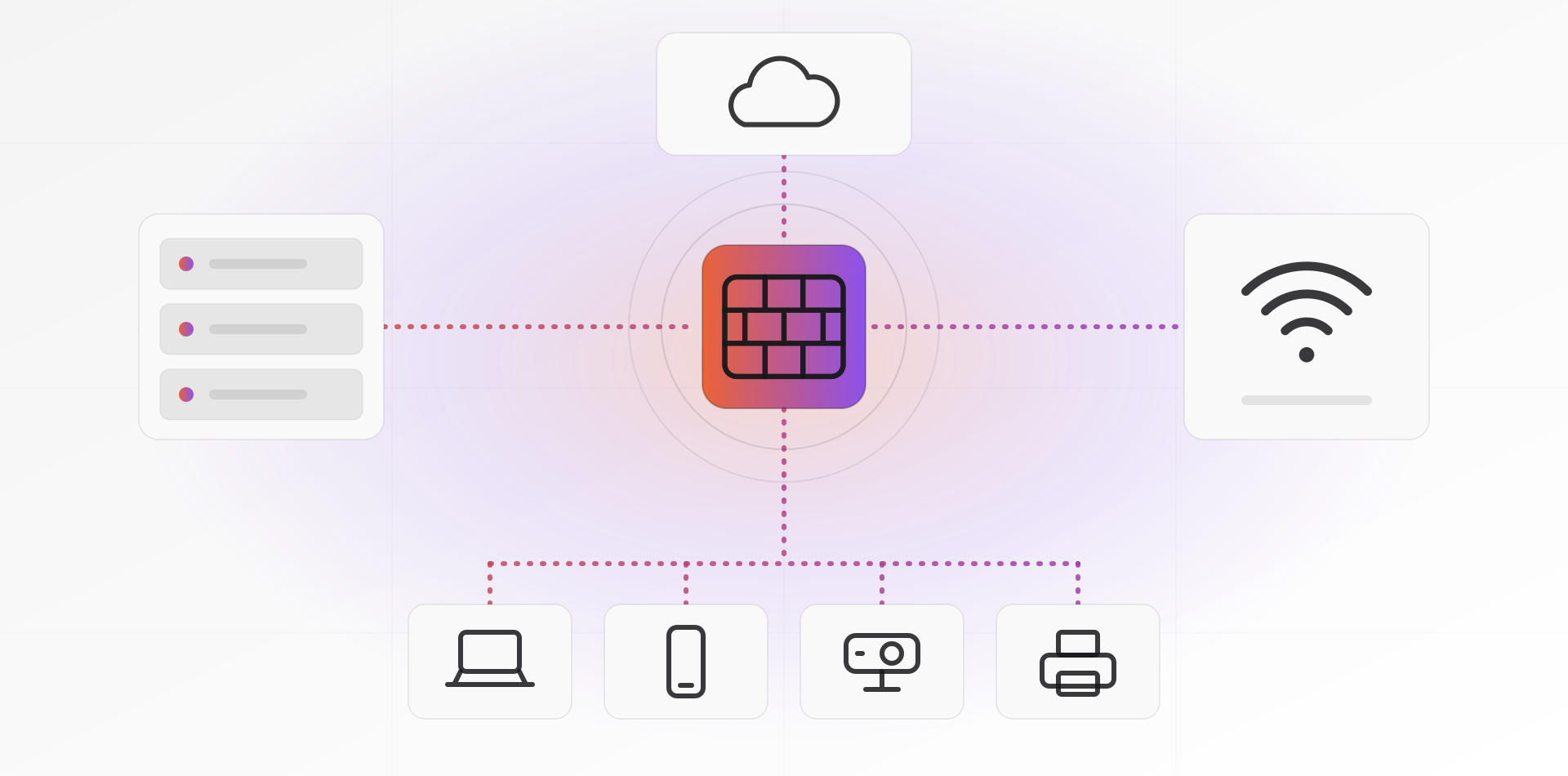
The firewall is the front door. Buy a business-grade unit from a vendor that still ships security updates, such as Fortinet, Sophos, Ubiquiti or MikroTik, or run an open-source system like OPNsense on proper hardware. Check the throughput with security features switched on. The headline number on the box is usually plain routing.
Three habits matter more than the brand. Change the default admin password on day one. Never expose the admin page to the internet. Update the firmware on a schedule. CISA's guidance on network infrastructure devices explains why attackers like firewalls and routers: almost all of your traffic passes through them. Our patch management guide covers the routine.
Before you buy, put these six questions to the vendor or installer.
- Does it support VLANs and firewall rules between them?
- Does it include a VPN, or work with your remote-access tool?
- Does it support two internet lines with automatic failover?
- What is the throughput with intrusion prevention switched on?
- How long will the vendor ship updates for this model, and do they need a subscription?
- Can you export the full configuration to a file?
Split the network into VLANs
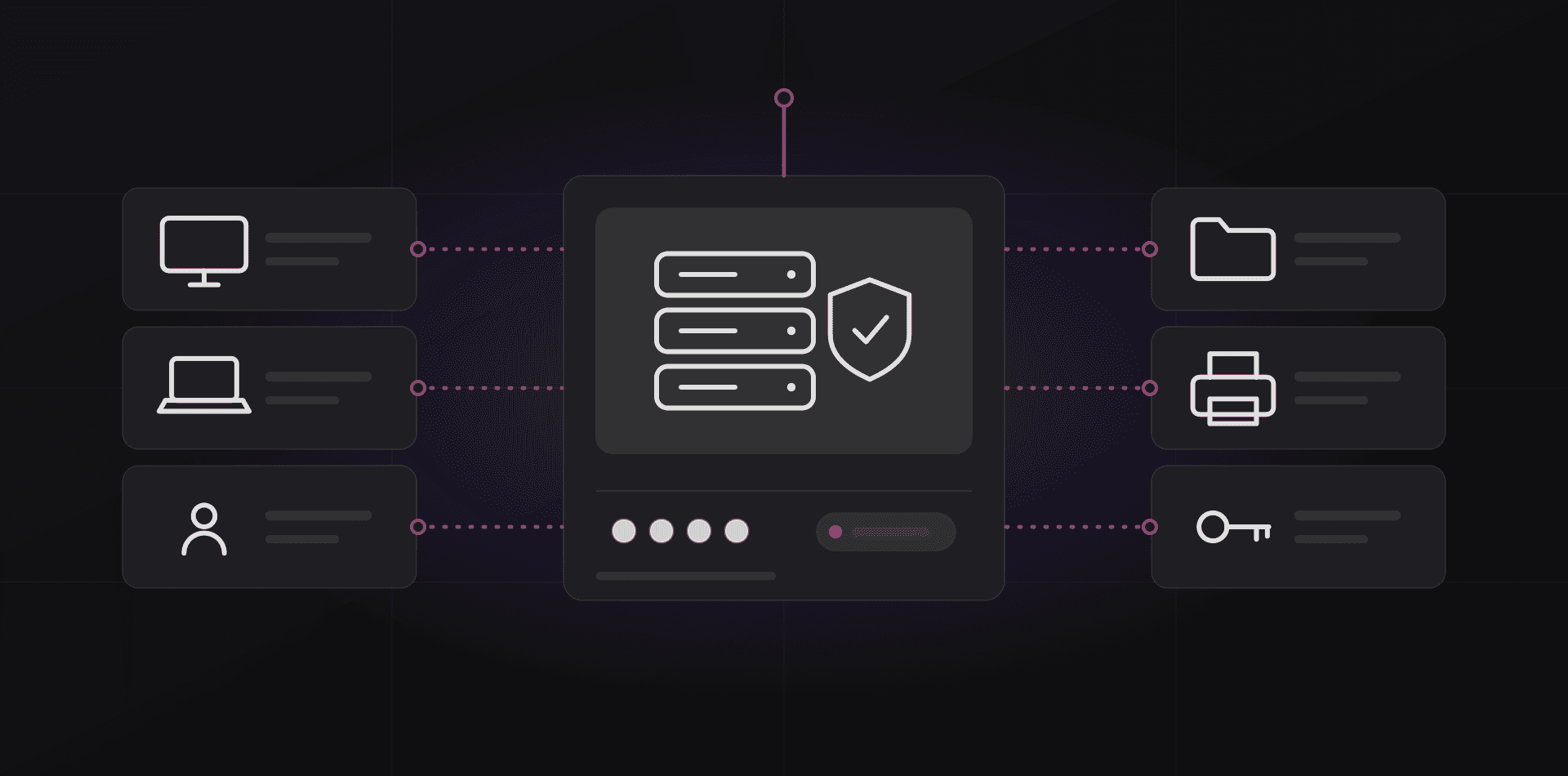
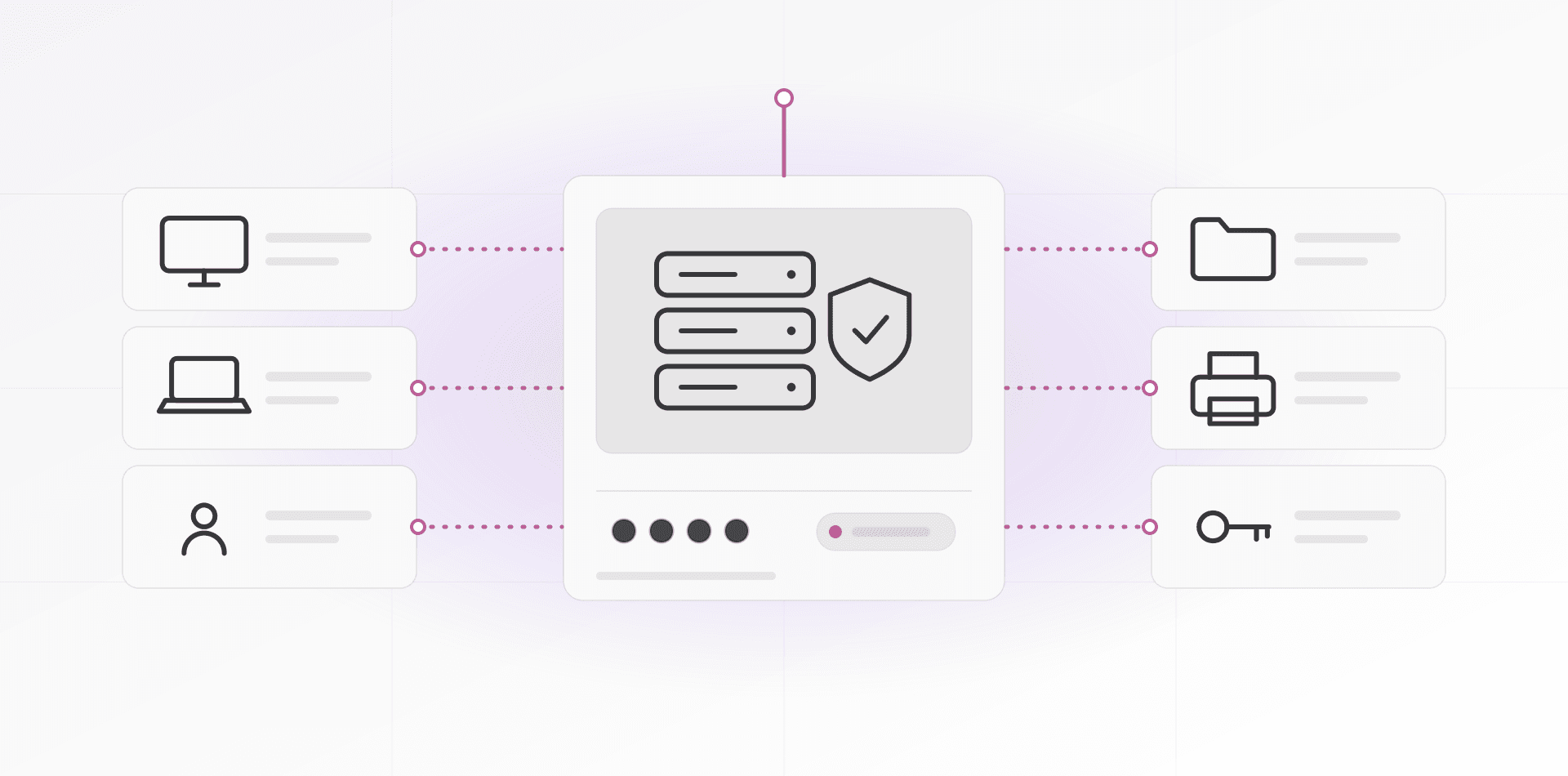
A VLAN, defined in the IEEE 802.1Q standard, lets one physical switch behave like several separate networks. Devices in one VLAN cannot talk to another unless the firewall allows it. That single idea contains most office incidents: an infected visitor phone or a cheap camera stays in its own pen. Segmentation is also the first item in CISA's advice on securing network infrastructure.
Start with four VLANs. Add a fifth for management once you have several switches and access points.
- Staff (VLAN 10): laptops, desktops and office printers. They reach the servers on specific ports, plus the internet.
- Servers (VLAN 20): file server, NAS, ERP and backup target. They accept connections from staff and start almost none.
- Guests (VLAN 30): visitor Wi-Fi. Internet only, with client isolation so guests cannot see each other.
- Cameras and IoT (VLAN 40): cameras, door controllers, smart TVs and badge readers. They talk to their recorder and nothing else.
- Management (VLAN 99): the admin pages of the firewall, switches and access points, reachable only from an admin PC.
The VLANs are only half the job. The firewall rules between them do the protecting. Default to deny, then allow what is needed: staff to the file server and ERP, cameras to the recorder, guests to the internet and nothing else. A VLAN with no firewall rule behind it is just a label.
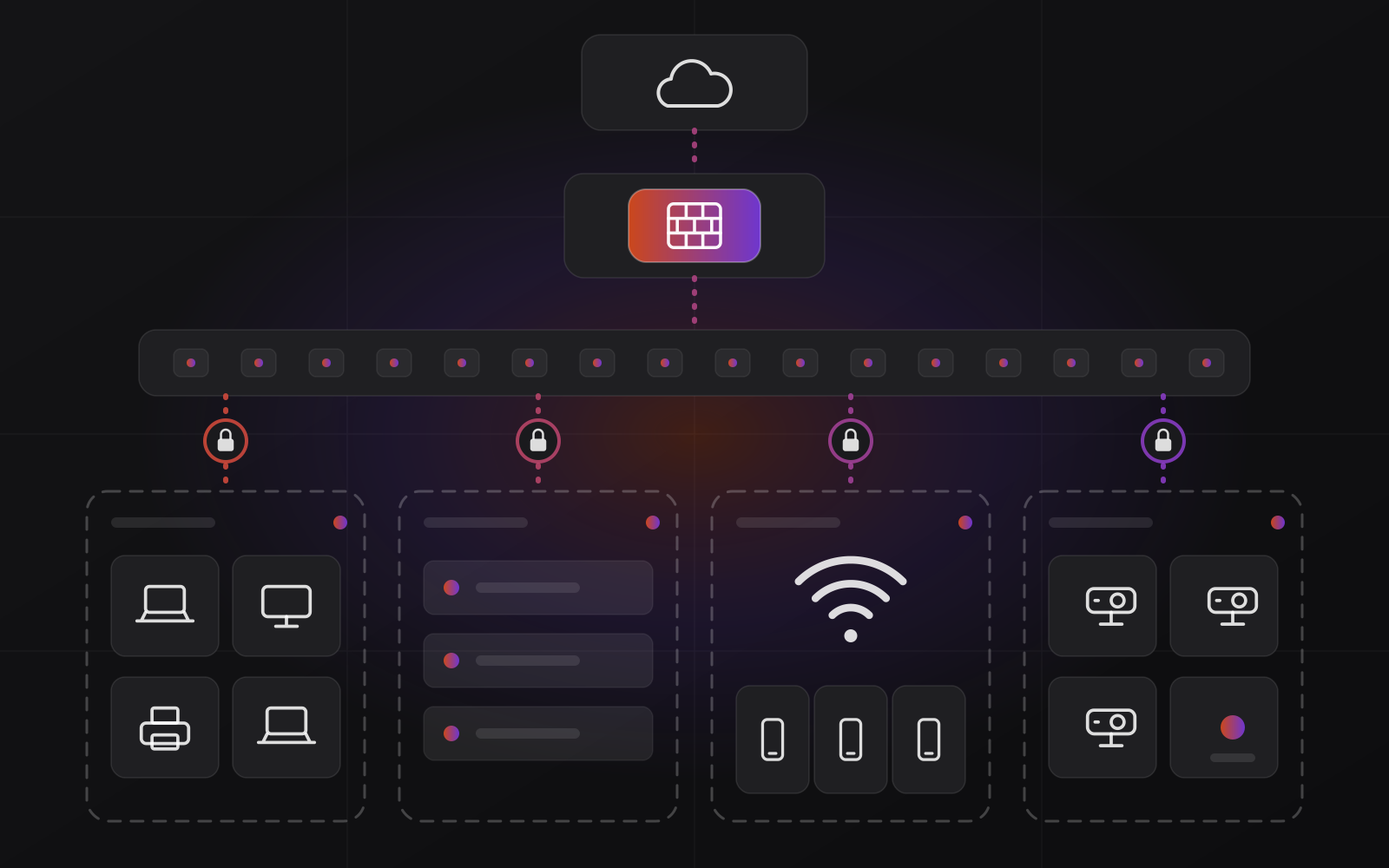
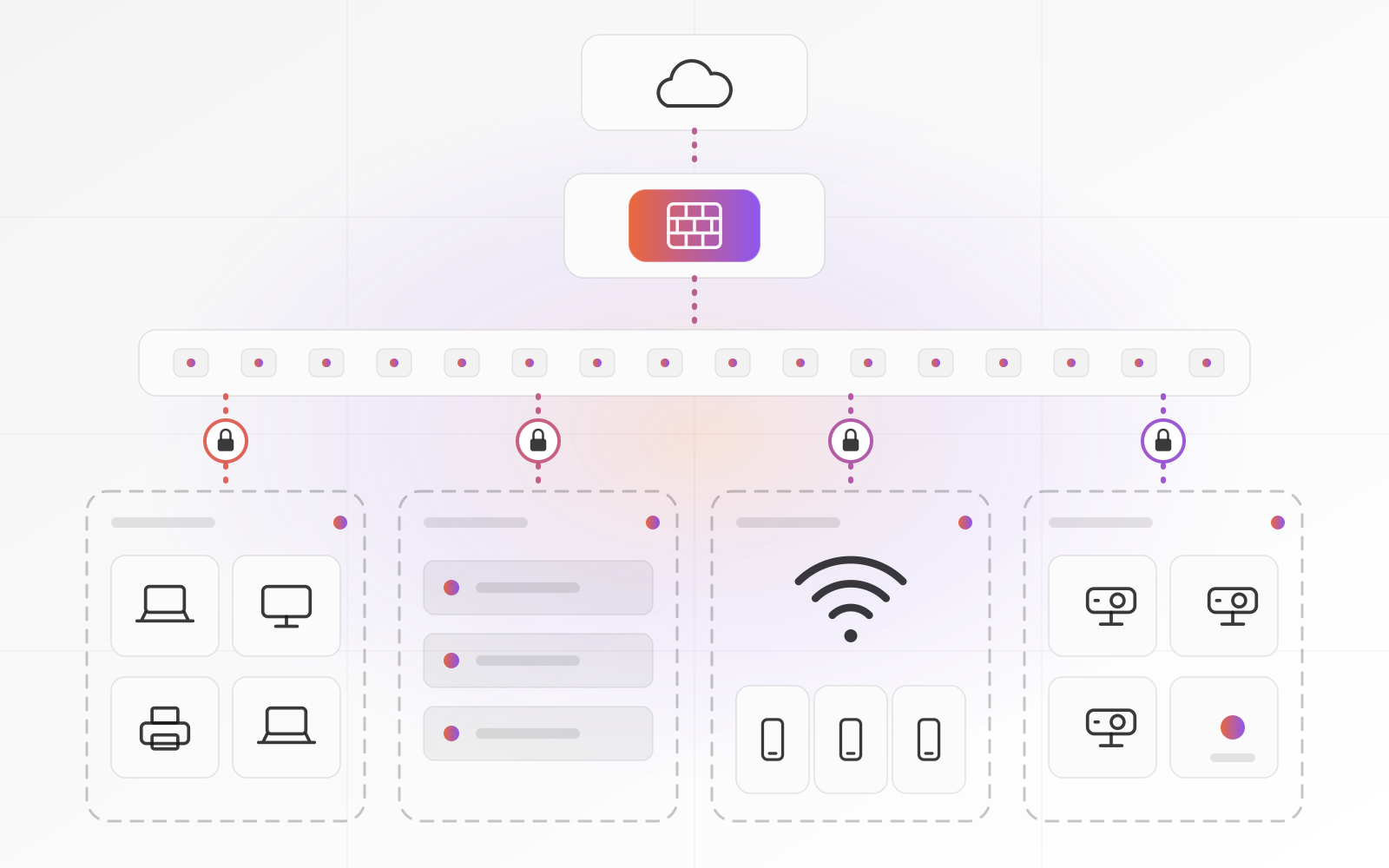
A VLAN with no firewall rule behind it is just a label.
When you can skip VLANs
Picture a five-person office with laptops, a printer and no servers. Two networks, staff and guests, are plenty. Add more when you add a server, cameras or a busy reception desk. Complexity you do not need costs you every time something breaks.
Switches, cabling, the rack and the UPS
Switches
Buy managed switches. Unmanaged ones cannot carry VLANs, and you will want the port statistics the first time someone asks why the file server crawls. Choose PoE ports for access points, cameras and desk phones, and check the power budget: 802.3af delivers up to 15.4 watts per port, 802.3at up to 30 watts, and a switch's total budget is usually lower than ports times watts. Give desks gigabit and use faster uplinks between switches and to the servers.
Cabling
Run Cat6. It carries gigabit to the full 100 meters and 10 gigabit up to roughly 55 meters, while Cat6a holds 10 gigabit to 100 meters. Cat5e also does gigabit, but the price gap is small and cable is the one part you cannot cheaply change once the walls are closed.
Pull two drops to every desk, one to each access-point location, and a few spares to meeting rooms. Terminate each run on a patch panel in the rack and a wall socket at the desk, never on loose plugs. Resist the cheap switch under the desk: it hides devices from you and invites loops.
The rack and the UPS
A small wall-mounted cabinet, 6U to 12U, holds the patch panel, switch, firewall, ISP terminal and NAS or server. The UPS sits at the bottom because it is heavy. Give the cabinet airflow and a lock. A cleaning cupboard is not a server room.
The UPS is a battery that carries your equipment through dips and short cuts. Put the firewall, switches, ISP terminal and servers on it, and leave the printers and the kettle off. Size it by watts and the minutes of runtime you want, and connect it to the server so it can trigger a clean shutdown. Replace the battery every three to five years. It does not replace backups and a recovery plan: a UPS cannot undo ransomware or a failed disk.
Wi-Fi: plan access points instead of buying a bigger router
A consumer router tries to be firewall, switch and Wi-Fi in one box in a corner. In an office that means a weak signal at the far end and dropped calls between rooms. Business Wi-Fi uses several ceiling-mounted access points, wired back to a PoE switch and managed from one place.
Plan coverage before you buy. Walk the floor with a survey app, note thick walls and metal doors, and count devices as well as square meters. Twenty people need more capacity than an empty warehouse of the same size. Mount access points on ceilings in the open, never inside cupboards. Then lower their transmit power a little, so they do not shout louder than the phones can answer.
Wi-Fi 6 (802.11ax) is a sensible baseline today. Wi-Fi 6E extends it into the 6 GHz band, where your country's rules allow. Wi-Fi 7 (802.11be), introduced in 2024, adds 320 MHz channels in the 6 GHz band and multi-link operation, but you only see the gain when the device supports it too. Buy for coverage, roaming and manageability first. Peak speed on a spec sheet is the last thing staff will notice.
Map each wireless network to a VLAN. Staff Wi-Fi lands in the staff VLAN, visitor Wi-Fi in guests, and smart devices in the IoT VLAN. Use WPA3 where devices support it, and WPA2 where they do not. For staff, per-person logins (WPA2 or WPA3 Enterprise, which needs a small RADIUS server) let you cut off a leaver without changing the password for everyone. Keep to three or four network names, because every extra one adds overhead on the air.
Document it, label it and add a second line
A network nobody has written down is a network only one person can fix. Keep one folder, and update it after every change.
- A network diagram, updated after every change
- VLAN IDs, subnets, DHCP ranges and fixed addresses
- A device list with model, serial number, location and firmware version
- The ISP account number, circuit ID and support phone number
- Dated exports of the firewall and switch configurations
- A note on where admin logins live: a password manager, not a spreadsheet
Label as you build: both ends of every cable, every patch panel port, every power adapter. It costs an afternoon and saves hours when something fails on a Monday morning.
Then plan for the line going down. A second connection from a different provider, ideally on a different technology such as fibre plus a 4G or 5G router, keeps the office working when one fails. Two lines from the same provider in the same duct count as one. Your firewall needs dual-WAN support to switch over automatically.
Check what depends on a fixed IP address, such as a VPN or a camera feed, because those need extra setup on the backup line. Remote access built on an outbound tunnel survives a line change without fuss; our guide to secure remote access for small business explains how. A four-person office that lives in cloud apps may be fine with a phone hotspot. Match the cost of the second line to the cost of a lost day.
Frequently asked questions about small business network design
Do I need VLANs in a small office?
At least a separate guest network, yes. Add a servers VLAN once you run a file server or ERP, and a cameras and IoT VLAN once you have smart devices. VLANs only help when the firewall rules between them are written properly.
Can I use my ISP's router as my firewall?
You can, but you probably should not. ISP routers usually offer limited firewall rules, often no VLAN support, and an update schedule you do not control. Use the ISP box as a modem and put your own firewall behind it.
Is Wi-Fi 7 worth buying for a small office?
Only if your devices support it. Wi-Fi 6 access points cover most offices well, and Wi-Fi 7 helps only when both the access point and the device support it. Spend first on correct placement and wired uplinks.
How many access points does an office need?
It depends on walls, layout and device count, not floor area alone. Many offices start with one access point per open area or few rooms, then adjust after a survey, which costs little and prevents buying too few or too many.
Is Cat6 enough, or should I run Cat6a?
Cat6 is enough for most offices: gigabit to the desk, and 10 gigabit up to roughly 55 meters. Choose Cat6a for 10 gigabit over longer runs, or if you are cabling a building you will not reopen soon. It costs more to install.
Where to go next
If you are planning a move or replacing old gear, our server and network setup service covers design, cabling supervision and configuration. The security page shows how the network fits with the rest of your defenses, and you can send us your floor plan and device list for a review before you buy anything.
Related articles